


Choosing a design tool used to be simple: professionals used Adobe and everyone else struggled. Today there are three clear leaders serving different needs. Picking the wrong one either wastes money on features you never use or leaves you fighting a tool that cannot do the job. This guide explains, in plain language, what each tool is for and how to choose.
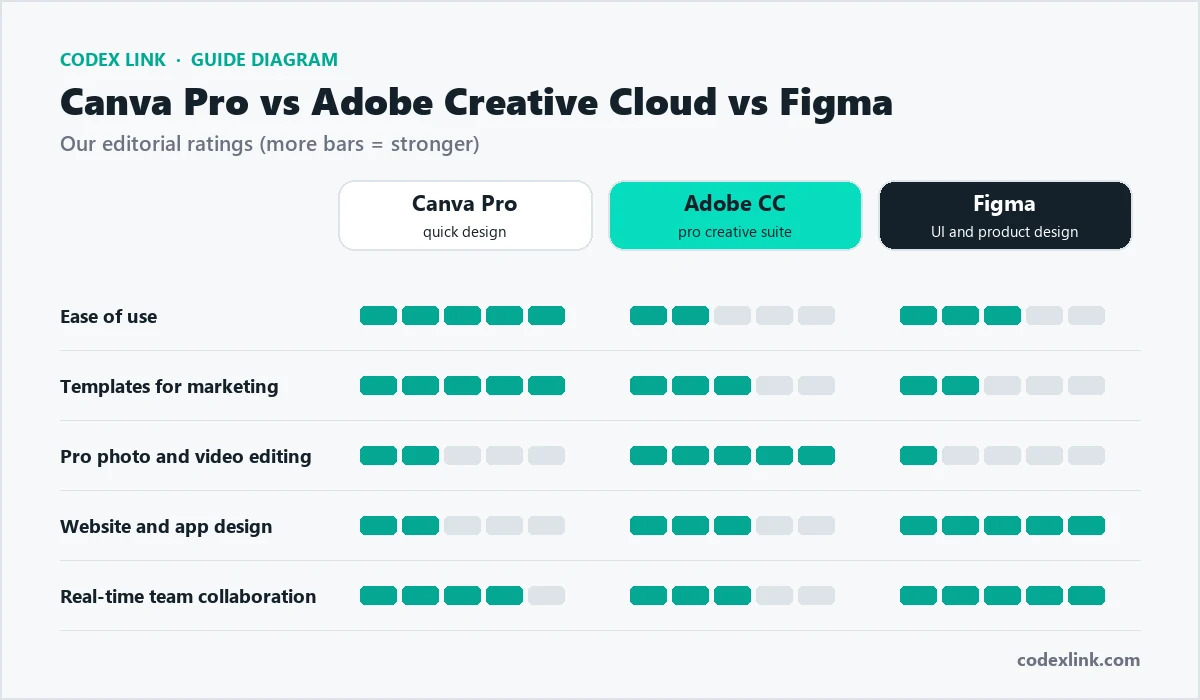
The quick answer
- Choose Canva Pro for social media posts, flyers, presentations, simple videos and brand consistency without a designer.
- Choose Adobe Creative Cloud for professional photo retouching, video editing, logo and illustration work and print production.
- Choose Figma for designing websites, apps, dashboards and design systems, especially with developers involved.
What is Canva?
Canva runs in the browser and in desktop and mobile apps. You pick a template, replace the text and images, and download or publish. No design training is needed.
Canva Pro adds the full premium template and stock library, the Brand Kit for your logos, colours and fonts, one-click Background Remover, Magic Resize to turn one design into every format, a content planner for scheduling posts, and more cloud storage. Canva's AI features, known as Magic Studio, can generate designs, images and text from short prompts. Our Canva Pro guide covers exactly what the paid plan adds over the free one.
Canva strengths
- Very fast to learn; most people are productive in an hour.
- Huge library of templates for almost every business need.
- Brand Kit keeps a whole team on brand.
- Easy sharing, commenting and team folders.
Canva limitations
- Less precise control than professional tools.
- Not built for advanced photo retouching or complex video editing.
- Designs can look generic if you only use templates without customising them.
What is Adobe Creative Cloud?
Adobe Creative Cloud is a family of professional apps. The All Apps plan bundles more than 20 programs; you can also subscribe to single apps. Our Adobe Creative Cloud guide explains the plans and apps.
| App | Used for |
|---|---|
| Photoshop | Photo editing, retouching and compositing |
| Illustrator | Logos, icons and vector illustration |
| InDesign | Brochures, magazines, books and print layouts |
| Premiere Pro | Professional video editing |
| After Effects | Motion graphics and visual effects |
| Lightroom | Organising and editing photo collections |
| Adobe Express | Quick social graphics, similar to Canva |
Adobe also includes Firefly generative AI features, such as Generative Fill in Photoshop, which can add, remove or extend parts of an image from a text description.
Adobe strengths
- The industry standard for professional creative work.
- Unmatched depth for photo, video, illustration and print.
- Files are accepted by printers, agencies and studios everywhere.
Adobe limitations
- Steep learning curve; serious skills take months to build.
- Higher cost, especially for the All Apps plan.
- More than most small businesses need for everyday marketing.
What is Figma?
Figma is a browser-based design tool for digital products. Designers create screens, components and interactive prototypes, and developers inspect the designs to build them. Several people can work on the same file at the same time, like a shared document.
Figma Professional removes the limits of the free Starter plan and adds shared team libraries, unlimited version history, advanced prototyping and Dev Mode for developers. FigJam, Figma's online whiteboard, is used for brainstorming and user flows. See our Figma Professional guide.
Figma strengths
- Best-in-class real-time collaboration.
- Components and design systems keep large products consistent.
- Prototypes let you test a website or app before it is built.
- Smooth handover to developers.
Figma limitations
- Not designed for photo editing, video or print.
- Fewer ready-made marketing templates than Canva.
Side-by-side comparison
| Canva Pro | Adobe Creative Cloud | Figma | |
|---|---|---|---|
| Main purpose | Marketing and everyday design | Professional media production | Website and app design |
| Learning curve | Very easy | Steep | Moderate |
| Templates | Huge library | Available, fewer for quick marketing | Community files and UI kits |
| Photo editing | Basic | Professional | Minimal |
| Video | Simple edits | Professional | Not supported |
| Collaboration | Good | Improving, cloud libraries | Excellent, real time |
| AI features | Magic Studio | Firefly, Generative Fill | AI design helpers |
| Works in | Browser, desktop, mobile | Mostly desktop apps | Browser, desktop |
Which tool for which job?
| Task | Best tool |
|---|---|
| Instagram and Facebook posts | Canva Pro |
| Business presentations | Canva Pro |
| Retouching product photos | Adobe Photoshop |
| Designing a logo | Adobe Illustrator (or Figma for simple marks) |
| Printed brochure or catalogue | Adobe InDesign |
| YouTube video with effects | Adobe Premiere Pro |
| Website or app design | Figma |
| Short social video or reel | Canva Pro |
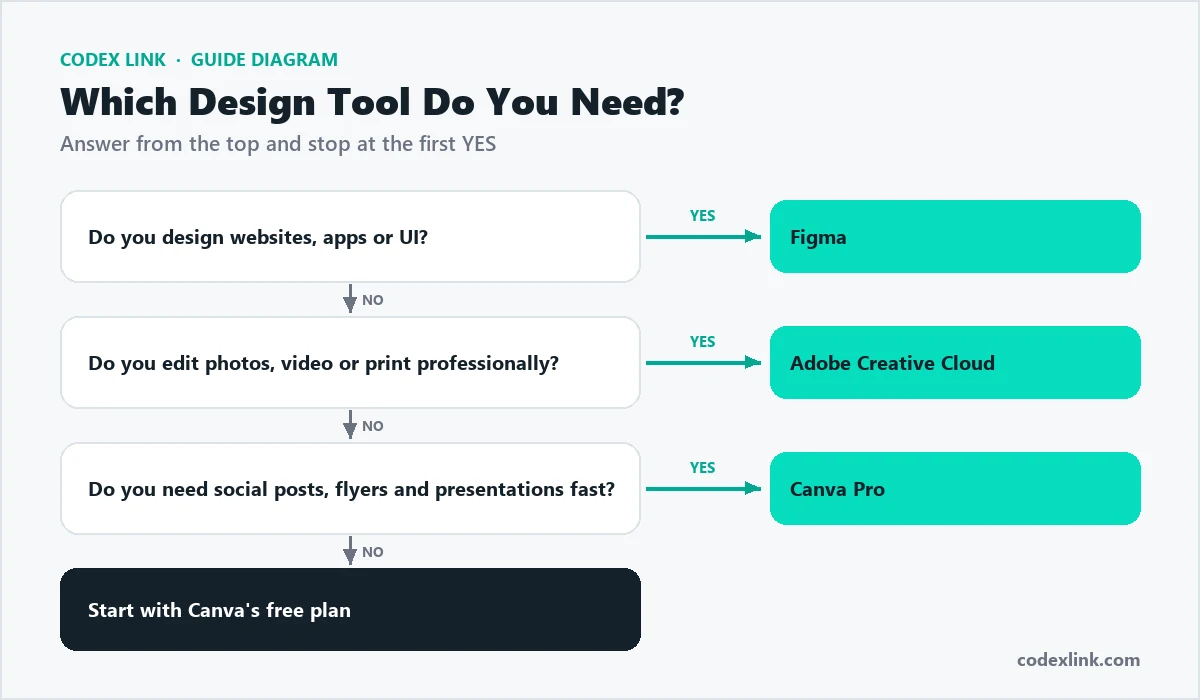
Examples: the same project in each tool
Project: a launch campaign for a new product.
Canva Pro:  social posts, story ads and a presentation in one afternoon
Adobe CC:   retouched product photos and a 30-second launch video
Figma:      the new landing page design and mobile mockups
This is why many businesses use more than one tool. Each tool does its part of the job best.
Common social media image sizes
Whichever tool you use, design at the right size for each platform. Canva's templates and Magic Resize handle this automatically; in Adobe and Figma you set the canvas size yourself.
| Format | Recommended size (pixels) |
|---|---|
| Instagram square post | 1080 x 1080 |
| Instagram portrait post | 1080 x 1350 |
| Instagram and Facebook story, Reels, TikTok | 1080 x 1920 |
| Facebook and LinkedIn link image | 1200 x 630 |
| YouTube thumbnail | 1280 x 720 |
| Presentation slide (16:9) | 1920 x 1080 |
File formats explained
Knowing which file type to export saves a lot of problems with printers, websites and clients.
- PNG: sharp graphics, logos and images with transparent backgrounds.
- JPG: photographs, with smaller file sizes.
- WebP: modern web format that keeps quality with much smaller files, ideal for websites.
- SVG: vector files for logos and icons that stay sharp at any size.
- PDF: documents and print files. Use "PDF Print" with bleed for professional printing.
- MP4: video for social media and websites.
Canva exports all common formats (some, such as SVG, on paid plans). Adobe exports everything, including print-ready PDFs with colour profiles. Figma exports PNG, JPG, SVG and PDF, ideal for web and app assets.
Step by step: set up your brand in Canva Pro
A 15-minute brand setup that makes every future design faster:
1. Open Brand Kit and upload your logo (light and dark versions)
2. Add your brand colours using their hex codes, e.g. #15212A and #07DEBE
3. Set your heading font and body font
4. Create 3 templates: square post, story and presentation
5. Lock the logo and fonts on each template
6. Share the templates with your team folder
Collaboration and teams
For teams, collaboration often matters more than individual features.
- Canva makes it easy for many people to create on-brand content from approved templates, with comments and approvals.
- Figma lets designers, developers and managers work in the same file at the same time and leave comments directly on designs.
- Adobe offers cloud libraries and sharing, with collaboration that suits professional creative teams.
AI design features compared
All three now include AI. Canva Magic Studio can generate a first design from a description, write captions and remove backgrounds. Adobe Firefly powers Generative Fill and Generative Expand in Photoshop, text effects and image generation designed with commercial use in mind. Figma adds AI helpers for tasks such as generating layout ideas, renaming layers and writing placeholder text.
Cost: what to budget for
Canva has a capable free plan, with Canva Pro and Canva Teams as paid upgrades. Figma has a free Starter plan and paid Professional and Organization plans per editor. Adobe Creative Cloud is usually the most expensive, especially the All Apps plan, though single-app plans cost less. Check current pricing on each provider's site, or compare genuine subscriptions in the CodeX Link marketplace.
- Solo business owner: Canva Pro is usually the best value.
- Marketing team: Canva Teams plus one Adobe seat for the designer.
- Product or web team: Figma for designers, viewer access for others.
- Creative studio: Adobe All Apps for each designer.
Learning curve and training
Canva can be learned in an afternoon. Figma takes a few weeks to use confidently for real projects, and longer to master components and prototyping. Adobe apps each take months to master, which is why professionals often specialise in one or two. Free tutorials are plentiful for all three, and structured courses on platforms such as Coursera and LinkedIn Learning can speed things up; see our learning platform comparison.
Can you switch between them?
Partly. You can import images and PDFs into each tool, Canva can open some PowerPoint and image files, and Figma can import some formats. Complex files rarely convert perfectly, so it is best to choose the main tool for each type of work and keep source files in that tool.

Working with a professional designer
Even with great tools, some projects deserve a professional: a new logo and brand identity, a website design, packaging or a major campaign. A good approach is to have a designer create your brand system and key templates, then let your team produce everyday content from those templates in Canva. You get professional quality where it matters and speed for daily work.
- Ask designers which tool they will deliver source files in.
- Make sure you own the final files, fonts licences and image licences.
- Request a simple brand guide: logo use, colours, fonts and examples.
Design quality: simple rules that work in any tool
- Use two fonts at most: one for headings and one for body text.
- Leave white space: crowded designs are hard to read and look cheap.
- Keep contrast high: dark text on light backgrounds, or the reverse, so everyone can read it.
- One message per design: one headline, one image and one call to action.
- Be consistent: the same colours, logo placement and style every time builds recognition.
Common mistakes when choosing a design tool
- Buying Adobe All Apps when you only make social posts.
- Trying to design a full website in Canva instead of a proper web design tool.
- Using Figma for print brochures that need InDesign-level control.
- Not setting up a Brand Kit, so every design looks slightly different.
- Relying only on templates, so your brand looks like everyone else's.
Licensing and commercial use
Before you publish a design, check that you have the right to use every element in it. Canva's content licence covers most commercial uses of its stock media within designs, with some restrictions, such as reselling templates unchanged. Adobe Stock and Adobe Fonts have their own licences, and Firefly is designed with commercial use in mind. In Figma, check the licence of any community file, icon set or font before using it in client work. When in doubt, read the licence page or use your own photos and fonts.
Our recommendation
Start with Canva Pro if you are a business owner or marketer who needs good-looking content quickly. Add Figma when you are planning a new website or app. Choose Adobe Creative Cloud when you need professional photo, video, illustration or print work, or hire a designer who uses it. Most growing businesses end up with Canva for daily content and one specialist tool.
How CodeX Link can help
Get genuine Canva Pro, Adobe Creative Cloud and Figma Professional subscriptions with instant activation from the CodeX Link marketplace. Need the design done for you? Our team designs websites, apps and social media content.