LinkedIn verification is the same badge everywhere, but the way you earn it depends on where you are. LinkedIn works with different identity partners in different regions, and each one accepts different documents.
This page goes country by country. For each one it covers how to verify, what you need, why it fails and how to fix it. Partner arrangements change, so treat the first screen of the verification flow on your own account as the final word on which documents are accepted.
For the general process see the complete verification guide, and for specific error messages see LinkedIn verification not working.
United States
LinkedIn verification not working in the USA
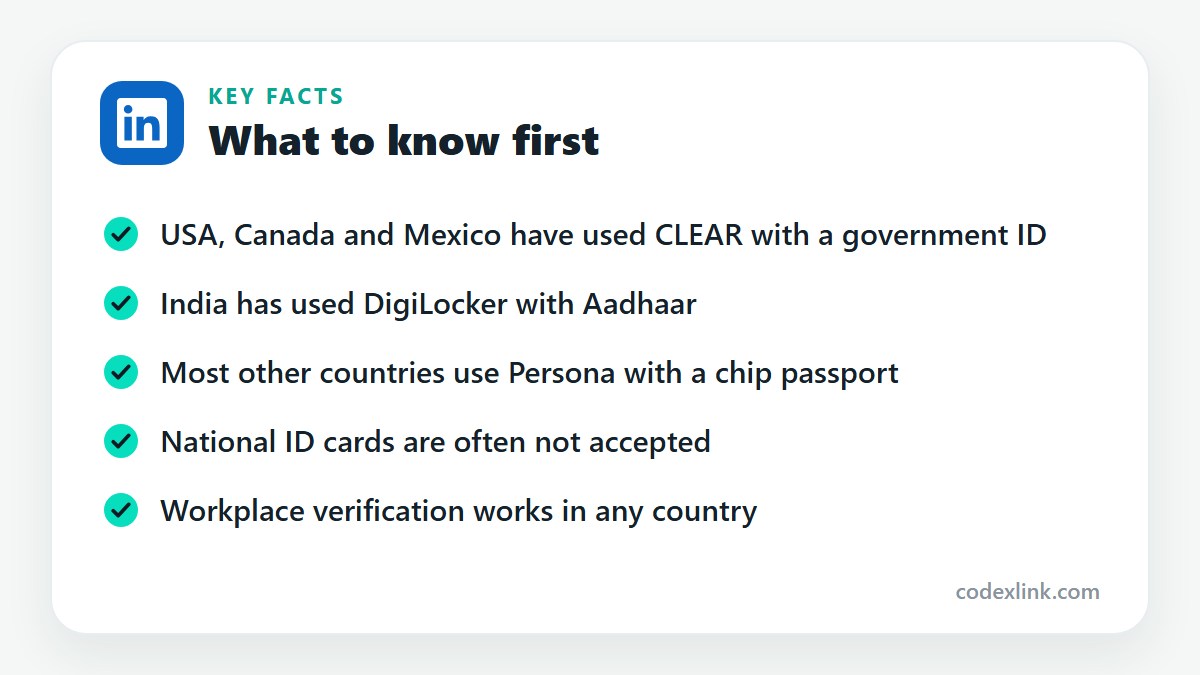
When verification will not work in the USA, look at the two things the local method depends on. LinkedIn's identity partner there has been CLEAR, which checks a government ID together with a phone number from that country. An expired licence, a temporary paper licence or a phone number that is not registered in your own name are the usual causes. Also confirm the LinkedIn app is current and that your profile name matches your ID exactly.
How to verify LinkedIn in the USA?
Open your own profile in the LinkedIn mobile app and select the Verify now prompt, or More and then About this profile. Choose identity verification. In the USA this has been handled by CLEAR. You confirm your phone number, scan a US passport, driving licence or state ID and take a selfie. If you already have a CLEAR account, you can sign in to it and skip some steps. The badge appears once the check passes.
LinkedIn ID verification failed in the USA
An ID failure in the USA usually means the document image was unreadable, the ID has expired, or its details did not match the phone number record. An expired licence, a temporary paper licence or a phone number that is not registered in your own name are the usual causes. Lay the ID flat on a dark surface, avoid glare and capture all four corners. If your name recently changed, the ID and phone account must both show the new name.
LinkedIn identity verification requirements in the USA
To verify your identity in the USA you need a US passport, driving licence or state ID, a smartphone with a working camera, the current LinkedIn app and a profile name that matches the ID. A US phone number in your name is part of the check. You do not need a Premium plan and there is no fee. LinkedIn lists the accepted documents on the first verification screen.
LinkedIn verification unavailable in the USA
Identity verification has been available in the USA since LinkedIn first launched the feature, so a missing option usually points to your account or app, not the country. Update the app, check on mobile under More and then About this profile, and make sure your account is not new or restricted. Workplace verification by company email is an alternative that needs no ID.
LinkedIn verification issues for US users
US users most often run into three problems: a phone number that is prepaid, shared or not in their own name, an ID that has expired, and a profile name that differs from the ID. Fix the one that applies before retrying. Space your attempts out, because several failures in a row can cause a temporary block.
LinkedIn workplace verification in the USA
Workplace verification in the USA uses a code sent to your company email address, or a digital employee credential if your employer has set one up. Add your current job, link it to the official Company Page, choose workplace verification and enter the code. It works only for supported employer domains, so staff at smaller American firms may not see it.
How to fix LinkedIn verification errors in the USA?
Begin with the exact error text. For a phone number error, use a number registered in your own name. For a document error, use a different accepted ID such as a passport. For a name mismatch, edit your profile name and save it. If two careful attempts fail, check CLEAR's help pages and raise a case with LinkedIn support, noting that you are verifying from the USA.
United Kingdom
LinkedIn verification not working in the UK
When verification will not work in the UK, the document is the first thing to check. LinkedIn's identity partner for the UK is normally Persona, which reads the encrypted chip inside an electronic passport and compares it with a selfie. The UK has no national ID card, and a driving licence is generally not accepted, so people without a current passport cannot complete the identity check. After the document, check that NFC is switched on, that the LinkedIn app is up to date and that your profile name matches the passport exactly.
How to verify LinkedIn in the UK?
Open your own profile in the LinkedIn mobile app and select the Verify now prompt, or More and then About this profile. Choose identity verification. In the UK this normally runs through Persona, and you need a biometric UK passport. Scan the photo page with the camera, rest the phone on the passport until the chip has been read, then take a selfie. The badge appears on your profile once the check passes, usually within minutes.
LinkedIn ID verification failed in the UK
An ID failure in the UK generally means the document could not be read or is not an accepted type. The UK has no national ID card, and a driving licence is generally not accepted, so people without a current passport cannot complete the identity check. If you are using the right passport, remove its cover, take your phone out of its case and hold the phone still against the chip until the progress indicator completes. An expired passport is always rejected, so renew it before trying again.
LinkedIn identity verification requirements in the UK
To verify your identity in the UK you need a biometric UK passport, a smartphone that supports NFC, the current LinkedIn app and a profile name that matches the document character for character. A UK driving licence is generally not accepted. You do not need a Premium plan and there is no fee. LinkedIn shows the exact list of accepted documents for your account on the first verification screen.
LinkedIn verification unavailable in the UK
If your profile shows no identity option in the UK, LinkedIn has not enabled it for your account yet, or your app needs updating. Check in the mobile app instead of a browser, under More and then About this profile. While you wait, workplace verification is available to anyone whose employer's email domain is supported, and it earns the same shield without any identity document.
LinkedIn verification issues for UK users
UK users most often run into three problems: a document the partner does not accept, a profile name that differs from the passport, and a chip that will not read. Each has a fix. Use a biometric UK passport, edit your first and last name to match it, and scan with NFC on and the phone case off. Space your attempts out, because several failures in quick succession can trigger a temporary block.
LinkedIn workplace verification in the UK
Workplace verification works the same way in the UK as everywhere else. Add your current job and link it to the official Company Page, choose workplace verification, enter your company email address and type in the code LinkedIn sends. It only works when LinkedIn supports your employer's email domain, so staff at smaller British firms, and anyone using a Gmail or similar address, may not see the option.
How to fix LinkedIn verification errors in the UK?
Begin with the exact error text. For a document error, switch to a biometric UK passport. For a name mismatch, correct your profile name and save it before retrying. For a camera or NFC fault, update the app, grant camera permission and restart the phone. If the check still fails after two careful attempts, raise a case through the LinkedIn Help Centre and mention that you are verifying from the UK.
Canada
LinkedIn verification not working in Canada
When verification will not work in Canada, look at the two things the local method depends on. LinkedIn's identity partner there has been CLEAR, which checks a government ID together with a phone number from that country. A health card is not accepted, and a phone number from outside Canada stops the check. Also confirm the LinkedIn app is current and that your profile name matches your ID exactly.
How to verify LinkedIn in Canada?
Open your own profile in the LinkedIn mobile app and select the Verify now prompt, or More and then About this profile. Choose identity verification. In Canada this has been handled by CLEAR. You confirm your phone number, scan a Canadian passport or driving licence and take a selfie. If you already have a CLEAR account, you can sign in to it and skip some steps. The badge appears once the check passes.
LinkedIn ID verification failed in Canada
An ID failure in Canada usually means the document image was unreadable, the ID has expired, or its details did not match the phone number record. A health card is not accepted, and a phone number from outside Canada stops the check. Lay the ID flat on a dark surface, avoid glare and capture all four corners. If your name recently changed, the ID and phone account must both show the new name.
LinkedIn identity verification requirements in Canada
To verify your identity in Canada you need a Canadian passport or driving licence, a smartphone with a working camera, the current LinkedIn app and a profile name that matches the ID. A Canadian phone number is part of the check. You do not need a Premium plan and there is no fee. LinkedIn lists the accepted documents on the first verification screen.
LinkedIn verification unavailable in Canada
Identity verification has been available in Canada since LinkedIn first launched the feature, so a missing option usually points to your account or app, not the country. Update the app, check on mobile under More and then About this profile, and make sure your account is not new or restricted. Workplace verification by company email is an alternative that needs no ID.
LinkedIn verification issues for Canadian users
Canadian users most often run into three problems: a phone number that is prepaid, shared or not in their own name, an ID that has expired, and a profile name that differs from the ID. Fix the one that applies before retrying. Space your attempts out, because several failures in a row can cause a temporary block.
LinkedIn workplace verification in Canada
Workplace verification in Canada uses a code sent to your company email address, or a digital employee credential if your employer has set one up. Add your current job, link it to the official Company Page, choose workplace verification and enter the code. It works only for supported employer domains, so staff at smaller Canadian firms may not see it.
How to fix LinkedIn verification errors in Canada?
Begin with the exact error text. For a phone number error, use a number registered in your own name. For a document error, use a different accepted ID such as a passport. For a name mismatch, edit your profile name and save it. If two careful attempts fail, check CLEAR's help pages and raise a case with LinkedIn support, noting that you are verifying from Canada.
Australia
LinkedIn verification not working in Australia
When verification will not work in Australia, the document is the first thing to check. LinkedIn's identity partner for Australia is normally Persona, which reads the encrypted chip inside an electronic passport and compares it with a selfie. A driver licence or Medicare card is generally not accepted, which catches out people without a current passport. After the document, check that NFC is switched on, that the LinkedIn app is up to date and that your profile name matches the passport exactly.
How to verify LinkedIn in Australia?
Open your own profile in the LinkedIn mobile app and select the Verify now prompt, or More and then About this profile. Choose identity verification. In Australia this normally runs through Persona, and you need an Australian ePassport. Scan the photo page with the camera, rest the phone on the passport until the chip has been read, then take a selfie. The badge appears on your profile once the check passes, usually within minutes.
LinkedIn ID verification failed in Australia
An ID failure in Australia generally means the document could not be read or is not an accepted type. A driver licence or Medicare card is generally not accepted, which catches out people without a current passport. If you are using the right passport, remove its cover, take your phone out of its case and hold the phone still against the chip until the progress indicator completes. An expired passport is always rejected, so renew it before trying again.
LinkedIn identity verification requirements in Australia
To verify your identity in Australia you need an Australian ePassport, a smartphone that supports NFC, the current LinkedIn app and a profile name that matches the document character for character. State driver licences are generally not accepted. You do not need a Premium plan and there is no fee. LinkedIn shows the exact list of accepted documents for your account on the first verification screen.
LinkedIn verification unavailable in Australia
If your profile shows no identity option in Australia, LinkedIn has not enabled it for your account yet, or your app needs updating. Check in the mobile app instead of a browser, under More and then About this profile. While you wait, workplace verification is available to anyone whose employer's email domain is supported, and it earns the same shield without any identity document.
LinkedIn verification issues for Australian users
Australian users most often run into three problems: a document the partner does not accept, a profile name that differs from the passport, and a chip that will not read. Each has a fix. Use an Australian ePassport, edit your first and last name to match it, and scan with NFC on and the phone case off. Space your attempts out, because several failures in quick succession can trigger a temporary block.
LinkedIn workplace verification in Australia
Workplace verification works the same way in Australia as everywhere else. Add your current job and link it to the official Company Page, choose workplace verification, enter your company email address and type in the code LinkedIn sends. It only works when LinkedIn supports your employer's email domain, so staff at smaller Australian firms, and anyone using a Gmail or similar address, may not see the option.
How to fix LinkedIn verification errors in Australia?
Begin with the exact error text. For a document error, switch to an Australian ePassport. For a name mismatch, correct your profile name and save it before retrying. For a camera or NFC fault, update the app, grant camera permission and restart the phone. If the check still fails after two careful attempts, raise a case through the LinkedIn Help Centre and mention that you are verifying from Australia.
Pakistan
LinkedIn verification not working in Pakistan
When verification will not work in Pakistan, the document is the first thing to check. LinkedIn's identity partner for Pakistan is normally Persona, which reads the encrypted chip inside an electronic passport and compares it with a selfie. Most passports issued before the e-passport launch are machine-readable only and have no chip, so they cannot be scanned. A CNIC is generally not accepted. After the document, check that NFC is switched on, that the LinkedIn app is up to date and that your profile name matches the passport exactly.
How to verify LinkedIn in Pakistan?
Open your own profile in the LinkedIn mobile app and select the Verify now prompt, or More and then About this profile. Choose identity verification. In Pakistan this normally runs through Persona, and you need a Pakistani e-passport with a chip. Scan the photo page with the camera, rest the phone on the passport until the chip has been read, then take a selfie. The badge appears on your profile once the check passes, usually within minutes.
LinkedIn ID verification failed in Pakistan
An ID failure in Pakistan generally means the document could not be read or is not an accepted type. Most passports issued before the e-passport launch are machine-readable only and have no chip, so they cannot be scanned. A CNIC is generally not accepted. If you are using the right passport, remove its cover, take your phone out of its case and hold the phone still against the chip until the progress indicator completes. An expired passport is always rejected, so renew it before trying again.
LinkedIn identity verification requirements in Pakistan
To verify your identity in Pakistan you need a Pakistani e-passport with a chip, a smartphone that supports NFC, the current LinkedIn app and a profile name that matches the document character for character. A CNIC or NICOP is generally not accepted. You do not need a Premium plan and there is no fee. LinkedIn shows the exact list of accepted documents for your account on the first verification screen.
LinkedIn verification unavailable in Pakistan
If your profile shows no identity option in Pakistan, LinkedIn has not enabled it for your account yet, or your app needs updating. Check in the mobile app instead of a browser, under More and then About this profile. While you wait, workplace verification is available to anyone whose employer's email domain is supported, and it earns the same shield without any identity document.
LinkedIn verification issues for Pakistani users
Pakistani users most often run into three problems: a document the partner does not accept, a profile name that differs from the passport, and a chip that will not read. Each has a fix. Use a Pakistani e-passport with a chip, edit your first and last name to match it, and scan with NFC on and the phone case off. Space your attempts out, because several failures in quick succession can trigger a temporary block.
LinkedIn workplace verification in Pakistan
Workplace verification works the same way in Pakistan as everywhere else. Add your current job and link it to the official Company Page, choose workplace verification, enter your company email address and type in the code LinkedIn sends. It only works when LinkedIn supports your employer's email domain, so staff at smaller Pakistani firms, and anyone using a Gmail or similar address, may not see the option.
How to fix LinkedIn verification errors in Pakistan?
Begin with the exact error text. For a document error, switch to a Pakistani e-passport with a chip. For a name mismatch, correct your profile name and save it before retrying. For a camera or NFC fault, update the app, grant camera permission and restart the phone. If the check still fails after two careful attempts, raise a case through the LinkedIn Help Centre and mention that you are verifying from Pakistan.
India
LinkedIn verification not working in India
When verification will not work in India, check your Aadhaar details first. LinkedIn's main identity route there has been DigiLocker, which confirms your identity using Aadhaar. The usual cause is an Aadhaar record whose name differs from the LinkedIn profile, or a linked mobile number you no longer use, so the one-time code never arrives. Also make sure the LinkedIn app is current. A chip passport through Persona may be offered as a second route.
How to verify LinkedIn in India?
Open your own profile in the LinkedIn mobile app and select the Verify now prompt, or More and then About this profile. Choose identity verification and pick the DigiLocker option. Sign in to DigiLocker or create an account, enter your Aadhaar number and confirm the one-time code sent to the linked mobile. Give consent to share your details with LinkedIn, and the badge appears when the check passes.
LinkedIn ID verification failed in India
An ID failure in India generally means DigiLocker could not confirm your Aadhaar or the name returned did not match your profile. The usual cause is an Aadhaar record whose name differs from the LinkedIn profile, or a linked mobile number you no longer use, so the one-time code never arrives. Update your LinkedIn first and last name to match Aadhaar, check that your DigiLocker account is active, and try again. If you hold an Indian e-passport, the passport route is worth trying.
LinkedIn identity verification requirements in India
To verify your identity in India you need your Aadhaar number through DigiLocker, a DigiLocker account, the current LinkedIn app and a profile name that matches your Aadhaar record. The mobile number linked to Aadhaar must be active. There is no fee and no Premium plan is needed. A PAN card or driving licence is not used for this check.
LinkedIn verification unavailable in India
Identity verification has been offered in India for some time, so a missing option usually points to your account or app. Update the app, check on mobile under More and then About this profile, and confirm the account is not new or restricted. Workplace verification by company email is available as an alternative and needs no Aadhaar.
LinkedIn verification issues for Indian users
Indian users most often run into three problems: the one-time code never arrives because the linked mobile number is old, the Aadhaar name is spelled differently from the profile, and DigiLocker times out. Update the linked mobile through UIDAI if needed, match the name, and retry on a stable connection. Avoid rapid repeat attempts.
LinkedIn workplace verification in India
Workplace verification in India uses a code sent to your company email address. Add your current job, link it to the official Company Page, choose workplace verification and enter the code. Large employers are usually supported. Staff at smaller Indian firms, and anyone using a general email provider, may not see the option.
How to fix LinkedIn verification errors in India?
Begin with the exact error text. If the code does not arrive, check which mobile number is linked to Aadhaar. For a name mismatch, edit your profile name and save it. If DigiLocker itself fails, sign in to it separately to confirm the account works. After two failed attempts, raise a case with LinkedIn support and say you are verifying from India.
United Arab Emirates
LinkedIn verification not working in the UAE
When verification will not work in the UAE, the document is the first thing to check. LinkedIn's identity partner for the UAE is normally Persona, which reads the encrypted chip inside an electronic passport and compares it with a selfie. Most residents are expatriates, and an Emirates ID is generally not accepted, so the check depends on whether your home-country passport has a chip. After the document, check that NFC is switched on, that the LinkedIn app is up to date and that your profile name matches the passport exactly.
How to verify LinkedIn in the UAE?
Open your own profile in the LinkedIn mobile app and select the Verify now prompt, or More and then About this profile. Choose identity verification. In the UAE this normally runs through Persona, and you need the passport of your nationality, with a chip. Scan the photo page with the camera, rest the phone on the passport until the chip has been read, then take a selfie. The badge appears on your profile once the check passes, usually within minutes.
LinkedIn ID verification failed in the UAE
An ID failure in the UAE generally means the document could not be read or is not an accepted type. Most residents are expatriates, and an Emirates ID is generally not accepted, so the check depends on whether your home-country passport has a chip. If you are using the right passport, remove its cover, take your phone out of its case and hold the phone still against the chip until the progress indicator completes. An expired passport is always rejected, so renew it before trying again.
LinkedIn identity verification requirements in the UAE
To verify your identity in the UAE you need the passport of your nationality, with a chip, a smartphone that supports NFC, the current LinkedIn app and a profile name that matches the document character for character. An Emirates ID is generally not accepted. You do not need a Premium plan and there is no fee. LinkedIn shows the exact list of accepted documents for your account on the first verification screen.
LinkedIn verification unavailable in the UAE
If your profile shows no identity option in the UAE, LinkedIn has not enabled it for your account yet, or your app needs updating. Check in the mobile app instead of a browser, under More and then About this profile. While you wait, workplace verification is available to anyone whose employer's email domain is supported, and it earns the same shield without any identity document.
LinkedIn verification issues for UAE residents
UAE residents most often run into three problems: a document the partner does not accept, a profile name that differs from the passport, and a chip that will not read. Each has a fix. Use the passport of your nationality, with a chip, edit your first and last name to match it, and scan with NFC on and the phone case off. Space your attempts out, because several failures in quick succession can trigger a temporary block.
LinkedIn workplace verification in the UAE
Workplace verification works the same way in the UAE as everywhere else. Add your current job and link it to the official Company Page, choose workplace verification, enter your company email address and type in the code LinkedIn sends. It only works when LinkedIn supports your employer's email domain, so staff at smaller UAE-based firms, and anyone using a Gmail or similar address, may not see the option.
How to fix LinkedIn verification errors in the UAE?
Begin with the exact error text. For a document error, switch to the passport of your nationality, with a chip. For a name mismatch, correct your profile name and save it before retrying. For a camera or NFC fault, update the app, grant camera permission and restart the phone. If the check still fails after two careful attempts, raise a case through the LinkedIn Help Centre and mention that you are verifying from the UAE.
Saudi Arabia
LinkedIn verification not working in Saudi Arabia
When verification will not work in Saudi Arabia, the document is the first thing to check. LinkedIn's identity partner for Saudi Arabia is normally Persona, which reads the encrypted chip inside an electronic passport and compares it with a selfie. A national ID or Iqama is generally not accepted, and expatriates must use the passport of their own nationality. After the document, check that NFC is switched on, that the LinkedIn app is up to date and that your profile name matches the passport exactly.
How to verify LinkedIn in Saudi Arabia?
Open your own profile in the LinkedIn mobile app and select the Verify now prompt, or More and then About this profile. Choose identity verification. In Saudi Arabia this normally runs through Persona, and you need a chip passport. Scan the photo page with the camera, rest the phone on the passport until the chip has been read, then take a selfie. The badge appears on your profile once the check passes, usually within minutes.
LinkedIn ID verification failed in Saudi Arabia
An ID failure in Saudi Arabia generally means the document could not be read or is not an accepted type. A national ID or Iqama is generally not accepted, and expatriates must use the passport of their own nationality. If you are using the right passport, remove its cover, take your phone out of its case and hold the phone still against the chip until the progress indicator completes. An expired passport is always rejected, so renew it before trying again.
LinkedIn identity verification requirements in Saudi Arabia
To verify your identity in Saudi Arabia you need a chip passport, a smartphone that supports NFC, the current LinkedIn app and a profile name that matches the document character for character. A national ID or Iqama is generally not accepted. You do not need a Premium plan and there is no fee. LinkedIn shows the exact list of accepted documents for your account on the first verification screen.
LinkedIn verification unavailable in Saudi Arabia
If your profile shows no identity option in Saudi Arabia, LinkedIn has not enabled it for your account yet, or your app needs updating. Check in the mobile app instead of a browser, under More and then About this profile. While you wait, workplace verification is available to anyone whose employer's email domain is supported, and it earns the same shield without any identity document.
LinkedIn verification issues for Saudi users
Saudi users most often run into three problems: a document the partner does not accept, a profile name that differs from the passport, and a chip that will not read. Each has a fix. Use a chip passport, edit your first and last name to match it, and scan with NFC on and the phone case off. Space your attempts out, because several failures in quick succession can trigger a temporary block.
LinkedIn workplace verification in Saudi Arabia
Workplace verification works the same way in Saudi Arabia as everywhere else. Add your current job and link it to the official Company Page, choose workplace verification, enter your company email address and type in the code LinkedIn sends. It only works when LinkedIn supports your employer's email domain, so staff at smaller Saudi firms, and anyone using a Gmail or similar address, may not see the option.
How to fix LinkedIn verification errors in Saudi Arabia?
Begin with the exact error text. For a document error, switch to a chip passport. For a name mismatch, correct your profile name and save it before retrying. For a camera or NFC fault, update the app, grant camera permission and restart the phone. If the check still fails after two careful attempts, raise a case through the LinkedIn Help Centre and mention that you are verifying from Saudi Arabia.
Bangladesh
LinkedIn verification not working in Bangladesh
When verification will not work in Bangladesh, the document is the first thing to check. LinkedIn's identity partner for Bangladesh is normally Persona, which reads the encrypted chip inside an electronic passport and compares it with a selfie. Older machine-readable passports issued before e-passports were introduced have no chip and cannot be read. An NID card is generally not accepted. After the document, check that NFC is switched on, that the LinkedIn app is up to date and that your profile name matches the passport exactly.
How to verify LinkedIn in Bangladesh?
Open your own profile in the LinkedIn mobile app and select the Verify now prompt, or More and then About this profile. Choose identity verification. In Bangladesh this normally runs through Persona, and you need a Bangladeshi e-passport. Scan the photo page with the camera, rest the phone on the passport until the chip has been read, then take a selfie. The badge appears on your profile once the check passes, usually within minutes.
LinkedIn ID verification failed in Bangladesh
An ID failure in Bangladesh generally means the document could not be read or is not an accepted type. Older machine-readable passports issued before e-passports were introduced have no chip and cannot be read. An NID card is generally not accepted. If you are using the right passport, remove its cover, take your phone out of its case and hold the phone still against the chip until the progress indicator completes. An expired passport is always rejected, so renew it before trying again.
LinkedIn identity verification requirements in Bangladesh
To verify your identity in Bangladesh you need a Bangladeshi e-passport, a smartphone that supports NFC, the current LinkedIn app and a profile name that matches the document character for character. An NID card is generally not accepted. You do not need a Premium plan and there is no fee. LinkedIn shows the exact list of accepted documents for your account on the first verification screen.
LinkedIn verification unavailable in Bangladesh
If your profile shows no identity option in Bangladesh, LinkedIn has not enabled it for your account yet, or your app needs updating. Check in the mobile app instead of a browser, under More and then About this profile. While you wait, workplace verification is available to anyone whose employer's email domain is supported, and it earns the same shield without any identity document.
LinkedIn verification issues for Bangladeshi users
Bangladeshi users most often run into three problems: a document the partner does not accept, a profile name that differs from the passport, and a chip that will not read. Each has a fix. Use a Bangladeshi e-passport, edit your first and last name to match it, and scan with NFC on and the phone case off. Space your attempts out, because several failures in quick succession can trigger a temporary block.
LinkedIn workplace verification in Bangladesh
Workplace verification works the same way in Bangladesh as everywhere else. Add your current job and link it to the official Company Page, choose workplace verification, enter your company email address and type in the code LinkedIn sends. It only works when LinkedIn supports your employer's email domain, so staff at smaller Bangladeshi firms, and anyone using a Gmail or similar address, may not see the option.
How to fix LinkedIn verification errors in Bangladesh?
Begin with the exact error text. For a document error, switch to a Bangladeshi e-passport. For a name mismatch, correct your profile name and save it before retrying. For a camera or NFC fault, update the app, grant camera permission and restart the phone. If the check still fails after two careful attempts, raise a case through the LinkedIn Help Centre and mention that you are verifying from Bangladesh.
Philippines
LinkedIn verification not working in the Philippines
When verification will not work in the Philippines, the document is the first thing to check. LinkedIn's identity partner for the Philippines is normally Persona, which reads the encrypted chip inside an electronic passport and compares it with a selfie. A national ID, driver licence or UMID is generally not accepted, so applicants without a valid passport are stuck. After the document, check that NFC is switched on, that the LinkedIn app is up to date and that your profile name matches the passport exactly.
How to verify LinkedIn in the Philippines?
Open your own profile in the LinkedIn mobile app and select the Verify now prompt, or More and then About this profile. Choose identity verification. In the Philippines this normally runs through Persona, and you need a Philippine ePassport. Scan the photo page with the camera, rest the phone on the passport until the chip has been read, then take a selfie. The badge appears on your profile once the check passes, usually within minutes.
LinkedIn ID verification failed in the Philippines
An ID failure in the Philippines generally means the document could not be read or is not an accepted type. A national ID, driver licence or UMID is generally not accepted, so applicants without a valid passport are stuck. If you are using the right passport, remove its cover, take your phone out of its case and hold the phone still against the chip until the progress indicator completes. An expired passport is always rejected, so renew it before trying again.
LinkedIn identity verification requirements in the Philippines
To verify your identity in the Philippines you need a Philippine ePassport, a smartphone that supports NFC, the current LinkedIn app and a profile name that matches the document character for character. A PhilSys ID or driver licence is generally not accepted. You do not need a Premium plan and there is no fee. LinkedIn shows the exact list of accepted documents for your account on the first verification screen.
LinkedIn verification unavailable in the Philippines
If your profile shows no identity option in the Philippines, LinkedIn has not enabled it for your account yet, or your app needs updating. Check in the mobile app instead of a browser, under More and then About this profile. While you wait, workplace verification is available to anyone whose employer's email domain is supported, and it earns the same shield without any identity document.
LinkedIn verification issues for Filipino users
Filipino users most often run into three problems: a document the partner does not accept, a profile name that differs from the passport, and a chip that will not read. Each has a fix. Use a Philippine ePassport, edit your first and last name to match it, and scan with NFC on and the phone case off. Space your attempts out, because several failures in quick succession can trigger a temporary block.
LinkedIn workplace verification in the Philippines
Workplace verification works the same way in the Philippines as everywhere else. Add your current job and link it to the official Company Page, choose workplace verification, enter your company email address and type in the code LinkedIn sends. It only works when LinkedIn supports your employer's email domain, so staff at smaller Philippine firms, and anyone using a Gmail or similar address, may not see the option.
How to fix LinkedIn verification errors in the Philippines?
Begin with the exact error text. For a document error, switch to a Philippine ePassport. For a name mismatch, correct your profile name and save it before retrying. For a camera or NFC fault, update the app, grant camera permission and restart the phone. If the check still fails after two careful attempts, raise a case through the LinkedIn Help Centre and mention that you are verifying from the Philippines.
Nigeria
LinkedIn verification not working in Nigeria
When verification will not work in Nigeria, the document is the first thing to check. LinkedIn's identity partner for Nigeria is normally Persona, which reads the encrypted chip inside an electronic passport and compares it with a selfie. An NIN slip, voter card or driver licence is generally not accepted, and a worn passport chip often fails to read. After the document, check that NFC is switched on, that the LinkedIn app is up to date and that your profile name matches the passport exactly.
How to verify LinkedIn in Nigeria?
Open your own profile in the LinkedIn mobile app and select the Verify now prompt, or More and then About this profile. Choose identity verification. In Nigeria this normally runs through Persona, and you need a Nigerian e-passport. Scan the photo page with the camera, rest the phone on the passport until the chip has been read, then take a selfie. The badge appears on your profile once the check passes, usually within minutes.
LinkedIn ID verification failed in Nigeria
An ID failure in Nigeria generally means the document could not be read or is not an accepted type. An NIN slip, voter card or driver licence is generally not accepted, and a worn passport chip often fails to read. If you are using the right passport, remove its cover, take your phone out of its case and hold the phone still against the chip until the progress indicator completes. An expired passport is always rejected, so renew it before trying again.
LinkedIn identity verification requirements in Nigeria
To verify your identity in Nigeria you need a Nigerian e-passport, a smartphone that supports NFC, the current LinkedIn app and a profile name that matches the document character for character. An NIN slip or voter card is generally not accepted. You do not need a Premium plan and there is no fee. LinkedIn shows the exact list of accepted documents for your account on the first verification screen.
LinkedIn verification unavailable in Nigeria
If your profile shows no identity option in Nigeria, LinkedIn has not enabled it for your account yet, or your app needs updating. Check in the mobile app instead of a browser, under More and then About this profile. While you wait, workplace verification is available to anyone whose employer's email domain is supported, and it earns the same shield without any identity document.
LinkedIn verification issues for Nigerian users
Nigerian users most often run into three problems: a document the partner does not accept, a profile name that differs from the passport, and a chip that will not read. Each has a fix. Use a Nigerian e-passport, edit your first and last name to match it, and scan with NFC on and the phone case off. Space your attempts out, because several failures in quick succession can trigger a temporary block.
LinkedIn workplace verification in Nigeria
Workplace verification works the same way in Nigeria as everywhere else. Add your current job and link it to the official Company Page, choose workplace verification, enter your company email address and type in the code LinkedIn sends. It only works when LinkedIn supports your employer's email domain, so staff at smaller Nigerian firms, and anyone using a Gmail or similar address, may not see the option.
How to fix LinkedIn verification errors in Nigeria?
Begin with the exact error text. For a document error, switch to a Nigerian e-passport. For a name mismatch, correct your profile name and save it before retrying. For a camera or NFC fault, update the app, grant camera permission and restart the phone. If the check still fails after two careful attempts, raise a case through the LinkedIn Help Centre and mention that you are verifying from Nigeria.
South Africa
LinkedIn verification not working in South Africa
When verification will not work in South Africa, the document is the first thing to check. LinkedIn's identity partner for South Africa is normally Persona, which reads the encrypted chip inside an electronic passport and compares it with a selfie. A Smart ID card or green ID book is generally not accepted, which surprises many applicants. After the document, check that NFC is switched on, that the LinkedIn app is up to date and that your profile name matches the passport exactly.
How to verify LinkedIn in South Africa?
Open your own profile in the LinkedIn mobile app and select the Verify now prompt, or More and then About this profile. Choose identity verification. In South Africa this normally runs through Persona, and you need a South African passport with a chip. Scan the photo page with the camera, rest the phone on the passport until the chip has been read, then take a selfie. The badge appears on your profile once the check passes, usually within minutes.
LinkedIn ID verification failed in South Africa
An ID failure in South Africa generally means the document could not be read or is not an accepted type. A Smart ID card or green ID book is generally not accepted, which surprises many applicants. If you are using the right passport, remove its cover, take your phone out of its case and hold the phone still against the chip until the progress indicator completes. An expired passport is always rejected, so renew it before trying again.
LinkedIn identity verification requirements in South Africa
To verify your identity in South Africa you need a South African passport with a chip, a smartphone that supports NFC, the current LinkedIn app and a profile name that matches the document character for character. A Smart ID card is generally not accepted. You do not need a Premium plan and there is no fee. LinkedIn shows the exact list of accepted documents for your account on the first verification screen.
LinkedIn verification unavailable in South Africa
If your profile shows no identity option in South Africa, LinkedIn has not enabled it for your account yet, or your app needs updating. Check in the mobile app instead of a browser, under More and then About this profile. While you wait, workplace verification is available to anyone whose employer's email domain is supported, and it earns the same shield without any identity document.
LinkedIn verification issues for South African users
South African users most often run into three problems: a document the partner does not accept, a profile name that differs from the passport, and a chip that will not read. Each has a fix. Use a South African passport with a chip, edit your first and last name to match it, and scan with NFC on and the phone case off. Space your attempts out, because several failures in quick succession can trigger a temporary block.
LinkedIn workplace verification in South Africa
Workplace verification works the same way in South Africa as everywhere else. Add your current job and link it to the official Company Page, choose workplace verification, enter your company email address and type in the code LinkedIn sends. It only works when LinkedIn supports your employer's email domain, so staff at smaller South African firms, and anyone using a Gmail or similar address, may not see the option.
How to fix LinkedIn verification errors in South Africa?
Begin with the exact error text. For a document error, switch to a South African passport with a chip. For a name mismatch, correct your profile name and save it before retrying. For a camera or NFC fault, update the app, grant camera permission and restart the phone. If the check still fails after two careful attempts, raise a case through the LinkedIn Help Centre and mention that you are verifying from South Africa.
Germany
LinkedIn verification not working in Germany
When verification will not work in Germany, the document is the first thing to check. LinkedIn's identity partner for Germany is normally Persona, which reads the encrypted chip inside an electronic passport and compares it with a selfie. Applicants often try the Personalausweis first. Whether an ID card is accepted depends on what the verification screen lists for your account. After the document, check that NFC is switched on, that the LinkedIn app is up to date and that your profile name matches the passport exactly.
How to verify LinkedIn in Germany?
Open your own profile in the LinkedIn mobile app and select the Verify now prompt, or More and then About this profile. Choose identity verification. In Germany this normally runs through Persona, and you need a German biometric passport. Scan the photo page with the camera, rest the phone on the passport until the chip has been read, then take a selfie. The badge appears on your profile once the check passes, usually within minutes.
LinkedIn ID verification failed in Germany
An ID failure in Germany generally means the document could not be read or is not an accepted type. Applicants often try the Personalausweis first. Whether an ID card is accepted depends on what the verification screen lists for your account. If you are using the right passport, remove its cover, take your phone out of its case and hold the phone still against the chip until the progress indicator completes. An expired passport is always rejected, so renew it before trying again.
LinkedIn identity verification requirements in Germany
To verify your identity in Germany you need a German biometric passport, a smartphone that supports NFC, the current LinkedIn app and a profile name that matches the document character for character. An ID card works only if the verification screen lists it. You do not need a Premium plan and there is no fee. LinkedIn shows the exact list of accepted documents for your account on the first verification screen.
LinkedIn verification unavailable in Germany
If your profile shows no identity option in Germany, LinkedIn has not enabled it for your account yet, or your app needs updating. Check in the mobile app instead of a browser, under More and then About this profile. While you wait, workplace verification is available to anyone whose employer's email domain is supported, and it earns the same shield without any identity document.
LinkedIn verification issues for German users
German users most often run into three problems: a document the partner does not accept, a profile name that differs from the passport, and a chip that will not read. Each has a fix. Use a German biometric passport, edit your first and last name to match it, and scan with NFC on and the phone case off. Space your attempts out, because several failures in quick succession can trigger a temporary block.
LinkedIn workplace verification in Germany
Workplace verification works the same way in Germany as everywhere else. Add your current job and link it to the official Company Page, choose workplace verification, enter your company email address and type in the code LinkedIn sends. It only works when LinkedIn supports your employer's email domain, so staff at smaller German firms, and anyone using a Gmail or similar address, may not see the option.
How to fix LinkedIn verification errors in Germany?
Begin with the exact error text. For a document error, switch to a German biometric passport. For a name mismatch, correct your profile name and save it before retrying. For a camera or NFC fault, update the app, grant camera permission and restart the phone. If the check still fails after two careful attempts, raise a case through the LinkedIn Help Centre and mention that you are verifying from Germany.
France
LinkedIn verification not working in France
When verification will not work in France, the document is the first thing to check. LinkedIn's identity partner for France is normally Persona, which reads the encrypted chip inside an electronic passport and compares it with a selfie. Applicants often try the carte nationale d'identite first. Whether an ID card is accepted depends on what the verification screen lists for your account. After the document, check that NFC is switched on, that the LinkedIn app is up to date and that your profile name matches the passport exactly.
How to verify LinkedIn in France?
Open your own profile in the LinkedIn mobile app and select the Verify now prompt, or More and then About this profile. Choose identity verification. In France this normally runs through Persona, and you need a French biometric passport. Scan the photo page with the camera, rest the phone on the passport until the chip has been read, then take a selfie. The badge appears on your profile once the check passes, usually within minutes.
LinkedIn ID verification failed in France
An ID failure in France generally means the document could not be read or is not an accepted type. Applicants often try the carte nationale d'identite first. Whether an ID card is accepted depends on what the verification screen lists for your account. If you are using the right passport, remove its cover, take your phone out of its case and hold the phone still against the chip until the progress indicator completes. An expired passport is always rejected, so renew it before trying again.
LinkedIn identity verification requirements in France
To verify your identity in France you need a French biometric passport, a smartphone that supports NFC, the current LinkedIn app and a profile name that matches the document character for character. An ID card works only if the verification screen lists it. You do not need a Premium plan and there is no fee. LinkedIn shows the exact list of accepted documents for your account on the first verification screen.
LinkedIn verification unavailable in France
If your profile shows no identity option in France, LinkedIn has not enabled it for your account yet, or your app needs updating. Check in the mobile app instead of a browser, under More and then About this profile. While you wait, workplace verification is available to anyone whose employer's email domain is supported, and it earns the same shield without any identity document.
LinkedIn verification issues for French users
French users most often run into three problems: a document the partner does not accept, a profile name that differs from the passport, and a chip that will not read. Each has a fix. Use a French biometric passport, edit your first and last name to match it, and scan with NFC on and the phone case off. Space your attempts out, because several failures in quick succession can trigger a temporary block.
LinkedIn workplace verification in France
Workplace verification works the same way in France as everywhere else. Add your current job and link it to the official Company Page, choose workplace verification, enter your company email address and type in the code LinkedIn sends. It only works when LinkedIn supports your employer's email domain, so staff at smaller French firms, and anyone using a Gmail or similar address, may not see the option.
How to fix LinkedIn verification errors in France?
Begin with the exact error text. For a document error, switch to a French biometric passport. For a name mismatch, correct your profile name and save it before retrying. For a camera or NFC fault, update the app, grant camera permission and restart the phone. If the check still fails after two careful attempts, raise a case through the LinkedIn Help Centre and mention that you are verifying from France.
Spain
LinkedIn verification not working in Spain
When verification will not work in Spain, the document is the first thing to check. LinkedIn's identity partner for Spain is normally Persona, which reads the encrypted chip inside an electronic passport and compares it with a selfie. Applicants often try the DNI first. Whether it is accepted depends on what the verification screen lists for your account. After the document, check that NFC is switched on, that the LinkedIn app is up to date and that your profile name matches the passport exactly.
How to verify LinkedIn in Spain?
Open your own profile in the LinkedIn mobile app and select the Verify now prompt, or More and then About this profile. Choose identity verification. In Spain this normally runs through Persona, and you need a Spanish biometric passport. Scan the photo page with the camera, rest the phone on the passport until the chip has been read, then take a selfie. The badge appears on your profile once the check passes, usually within minutes.
LinkedIn ID verification failed in Spain
An ID failure in Spain generally means the document could not be read or is not an accepted type. Applicants often try the DNI first. Whether it is accepted depends on what the verification screen lists for your account. If you are using the right passport, remove its cover, take your phone out of its case and hold the phone still against the chip until the progress indicator completes. An expired passport is always rejected, so renew it before trying again.
LinkedIn identity verification requirements in Spain
To verify your identity in Spain you need a Spanish biometric passport, a smartphone that supports NFC, the current LinkedIn app and a profile name that matches the document character for character. A DNI works only if the verification screen lists it. You do not need a Premium plan and there is no fee. LinkedIn shows the exact list of accepted documents for your account on the first verification screen.
LinkedIn verification unavailable in Spain
If your profile shows no identity option in Spain, LinkedIn has not enabled it for your account yet, or your app needs updating. Check in the mobile app instead of a browser, under More and then About this profile. While you wait, workplace verification is available to anyone whose employer's email domain is supported, and it earns the same shield without any identity document.
LinkedIn verification issues for Spanish users
Spanish users most often run into three problems: a document the partner does not accept, a profile name that differs from the passport, and a chip that will not read. Each has a fix. Use a Spanish biometric passport, edit your first and last name to match it, and scan with NFC on and the phone case off. Space your attempts out, because several failures in quick succession can trigger a temporary block.
LinkedIn workplace verification in Spain
Workplace verification works the same way in Spain as everywhere else. Add your current job and link it to the official Company Page, choose workplace verification, enter your company email address and type in the code LinkedIn sends. It only works when LinkedIn supports your employer's email domain, so staff at smaller Spanish firms, and anyone using a Gmail or similar address, may not see the option.
How to fix LinkedIn verification errors in Spain?
Begin with the exact error text. For a document error, switch to a Spanish biometric passport. For a name mismatch, correct your profile name and save it before retrying. For a camera or NFC fault, update the app, grant camera permission and restart the phone. If the check still fails after two careful attempts, raise a case through the LinkedIn Help Centre and mention that you are verifying from Spain.
Italy
LinkedIn verification not working in Italy
When verification will not work in Italy, the document is the first thing to check. LinkedIn's identity partner for Italy is normally Persona, which reads the encrypted chip inside an electronic passport and compares it with a selfie. Applicants often try the carta d'identita first. Whether it is accepted depends on what the verification screen lists for your account. After the document, check that NFC is switched on, that the LinkedIn app is up to date and that your profile name matches the passport exactly.
How to verify LinkedIn in Italy?
Open your own profile in the LinkedIn mobile app and select the Verify now prompt, or More and then About this profile. Choose identity verification. In Italy this normally runs through Persona, and you need an Italian biometric passport. Scan the photo page with the camera, rest the phone on the passport until the chip has been read, then take a selfie. The badge appears on your profile once the check passes, usually within minutes.
LinkedIn ID verification failed in Italy
An ID failure in Italy generally means the document could not be read or is not an accepted type. Applicants often try the carta d'identita first. Whether it is accepted depends on what the verification screen lists for your account. If you are using the right passport, remove its cover, take your phone out of its case and hold the phone still against the chip until the progress indicator completes. An expired passport is always rejected, so renew it before trying again.
LinkedIn identity verification requirements in Italy
To verify your identity in Italy you need an Italian biometric passport, a smartphone that supports NFC, the current LinkedIn app and a profile name that matches the document character for character. An ID card works only if the verification screen lists it. You do not need a Premium plan and there is no fee. LinkedIn shows the exact list of accepted documents for your account on the first verification screen.
LinkedIn verification unavailable in Italy
If your profile shows no identity option in Italy, LinkedIn has not enabled it for your account yet, or your app needs updating. Check in the mobile app instead of a browser, under More and then About this profile. While you wait, workplace verification is available to anyone whose employer's email domain is supported, and it earns the same shield without any identity document.
LinkedIn verification issues for Italian users
Italian users most often run into three problems: a document the partner does not accept, a profile name that differs from the passport, and a chip that will not read. Each has a fix. Use an Italian biometric passport, edit your first and last name to match it, and scan with NFC on and the phone case off. Space your attempts out, because several failures in quick succession can trigger a temporary block.
LinkedIn workplace verification in Italy
Workplace verification works the same way in Italy as everywhere else. Add your current job and link it to the official Company Page, choose workplace verification, enter your company email address and type in the code LinkedIn sends. It only works when LinkedIn supports your employer's email domain, so staff at smaller Italian firms, and anyone using a Gmail or similar address, may not see the option.
How to fix LinkedIn verification errors in Italy?
Begin with the exact error text. For a document error, switch to an Italian biometric passport. For a name mismatch, correct your profile name and save it before retrying. For a camera or NFC fault, update the app, grant camera permission and restart the phone. If the check still fails after two careful attempts, raise a case through the LinkedIn Help Centre and mention that you are verifying from Italy.
Netherlands
LinkedIn verification not working in the Netherlands
When verification will not work in the Netherlands, the document is the first thing to check. LinkedIn's identity partner for the Netherlands is normally Persona, which reads the encrypted chip inside an electronic passport and compares it with a selfie. Applicants often try a Dutch ID card or driving licence first. Whether one is accepted depends on what the verification screen lists for your account. After the document, check that NFC is switched on, that the LinkedIn app is up to date and that your profile name matches the passport exactly.
How to verify LinkedIn in the Netherlands?
Open your own profile in the LinkedIn mobile app and select the Verify now prompt, or More and then About this profile. Choose identity verification. In the Netherlands this normally runs through Persona, and you need a Dutch biometric passport. Scan the photo page with the camera, rest the phone on the passport until the chip has been read, then take a selfie. The badge appears on your profile once the check passes, usually within minutes.
LinkedIn ID verification failed in the Netherlands
An ID failure in the Netherlands generally means the document could not be read or is not an accepted type. Applicants often try a Dutch ID card or driving licence first. Whether one is accepted depends on what the verification screen lists for your account. If you are using the right passport, remove its cover, take your phone out of its case and hold the phone still against the chip until the progress indicator completes. An expired passport is always rejected, so renew it before trying again.
LinkedIn identity verification requirements in the Netherlands
To verify your identity in the Netherlands you need a Dutch biometric passport, a smartphone that supports NFC, the current LinkedIn app and a profile name that matches the document character for character. An ID card works only if the verification screen lists it. You do not need a Premium plan and there is no fee. LinkedIn shows the exact list of accepted documents for your account on the first verification screen.
LinkedIn verification unavailable in the Netherlands
If your profile shows no identity option in the Netherlands, LinkedIn has not enabled it for your account yet, or your app needs updating. Check in the mobile app instead of a browser, under More and then About this profile. While you wait, workplace verification is available to anyone whose employer's email domain is supported, and it earns the same shield without any identity document.
LinkedIn verification issues for Dutch users
Dutch users most often run into three problems: a document the partner does not accept, a profile name that differs from the passport, and a chip that will not read. Each has a fix. Use a Dutch biometric passport, edit your first and last name to match it, and scan with NFC on and the phone case off. Space your attempts out, because several failures in quick succession can trigger a temporary block.
LinkedIn workplace verification in the Netherlands
Workplace verification works the same way in the Netherlands as everywhere else. Add your current job and link it to the official Company Page, choose workplace verification, enter your company email address and type in the code LinkedIn sends. It only works when LinkedIn supports your employer's email domain, so staff at smaller Dutch firms, and anyone using a Gmail or similar address, may not see the option.
How to fix LinkedIn verification errors in the Netherlands?
Begin with the exact error text. For a document error, switch to a Dutch biometric passport. For a name mismatch, correct your profile name and save it before retrying. For a camera or NFC fault, update the app, grant camera permission and restart the phone. If the check still fails after two careful attempts, raise a case through the LinkedIn Help Centre and mention that you are verifying from the Netherlands.
Ireland
LinkedIn verification not working in Ireland
When verification will not work in Ireland, the document is the first thing to check. LinkedIn's identity partner for Ireland is normally Persona, which reads the encrypted chip inside an electronic passport and compares it with a selfie. The Irish passport card and the driving licence are generally not accepted, so the passport book is needed. After the document, check that NFC is switched on, that the LinkedIn app is up to date and that your profile name matches the passport exactly.
How to verify LinkedIn in Ireland?
Open your own profile in the LinkedIn mobile app and select the Verify now prompt, or More and then About this profile. Choose identity verification. In Ireland this normally runs through Persona, and you need an Irish passport book with a chip. Scan the photo page with the camera, rest the phone on the passport until the chip has been read, then take a selfie. The badge appears on your profile once the check passes, usually within minutes.
LinkedIn ID verification failed in Ireland
An ID failure in Ireland generally means the document could not be read or is not an accepted type. The Irish passport card and the driving licence are generally not accepted, so the passport book is needed. If you are using the right passport, remove its cover, take your phone out of its case and hold the phone still against the chip until the progress indicator completes. An expired passport is always rejected, so renew it before trying again.
LinkedIn identity verification requirements in Ireland
To verify your identity in Ireland you need an Irish passport book with a chip, a smartphone that supports NFC, the current LinkedIn app and a profile name that matches the document character for character. The passport card is generally not accepted. You do not need a Premium plan and there is no fee. LinkedIn shows the exact list of accepted documents for your account on the first verification screen.
LinkedIn verification unavailable in Ireland
If your profile shows no identity option in Ireland, LinkedIn has not enabled it for your account yet, or your app needs updating. Check in the mobile app instead of a browser, under More and then About this profile. While you wait, workplace verification is available to anyone whose employer's email domain is supported, and it earns the same shield without any identity document.
LinkedIn verification issues for Irish users
Irish users most often run into three problems: a document the partner does not accept, a profile name that differs from the passport, and a chip that will not read. Each has a fix. Use an Irish passport book with a chip, edit your first and last name to match it, and scan with NFC on and the phone case off. Space your attempts out, because several failures in quick succession can trigger a temporary block.
LinkedIn workplace verification in Ireland
Workplace verification works the same way in Ireland as everywhere else. Add your current job and link it to the official Company Page, choose workplace verification, enter your company email address and type in the code LinkedIn sends. It only works when LinkedIn supports your employer's email domain, so staff at smaller Irish firms, and anyone using a Gmail or similar address, may not see the option.
How to fix LinkedIn verification errors in Ireland?
Begin with the exact error text. For a document error, switch to an Irish passport book with a chip. For a name mismatch, correct your profile name and save it before retrying. For a camera or NFC fault, update the app, grant camera permission and restart the phone. If the check still fails after two careful attempts, raise a case through the LinkedIn Help Centre and mention that you are verifying from Ireland.
Singapore
LinkedIn verification not working in Singapore
When verification will not work in Singapore, the document is the first thing to check. LinkedIn's identity partner for Singapore is normally Persona, which reads the encrypted chip inside an electronic passport and compares it with a selfie. An NRIC or Singpass login is generally not accepted for this check, and foreign residents must use their own passport. After the document, check that NFC is switched on, that the LinkedIn app is up to date and that your profile name matches the passport exactly.
How to verify LinkedIn in Singapore?
Open your own profile in the LinkedIn mobile app and select the Verify now prompt, or More and then About this profile. Choose identity verification. In Singapore this normally runs through Persona, and you need a Singapore biometric passport. Scan the photo page with the camera, rest the phone on the passport until the chip has been read, then take a selfie. The badge appears on your profile once the check passes, usually within minutes.
LinkedIn ID verification failed in Singapore
An ID failure in Singapore generally means the document could not be read or is not an accepted type. An NRIC or Singpass login is generally not accepted for this check, and foreign residents must use their own passport. If you are using the right passport, remove its cover, take your phone out of its case and hold the phone still against the chip until the progress indicator completes. An expired passport is always rejected, so renew it before trying again.
LinkedIn identity verification requirements in Singapore
To verify your identity in Singapore you need a Singapore biometric passport, a smartphone that supports NFC, the current LinkedIn app and a profile name that matches the document character for character. An NRIC is generally not accepted. You do not need a Premium plan and there is no fee. LinkedIn shows the exact list of accepted documents for your account on the first verification screen.
LinkedIn verification unavailable in Singapore
If your profile shows no identity option in Singapore, LinkedIn has not enabled it for your account yet, or your app needs updating. Check in the mobile app instead of a browser, under More and then About this profile. While you wait, workplace verification is available to anyone whose employer's email domain is supported, and it earns the same shield without any identity document.
LinkedIn verification issues for Singapore users
Singapore users most often run into three problems: a document the partner does not accept, a profile name that differs from the passport, and a chip that will not read. Each has a fix. Use a Singapore biometric passport, edit your first and last name to match it, and scan with NFC on and the phone case off. Space your attempts out, because several failures in quick succession can trigger a temporary block.
LinkedIn workplace verification in Singapore
Workplace verification works the same way in Singapore as everywhere else. Add your current job and link it to the official Company Page, choose workplace verification, enter your company email address and type in the code LinkedIn sends. It only works when LinkedIn supports your employer's email domain, so staff at smaller Singapore-based firms, and anyone using a Gmail or similar address, may not see the option.
How to fix LinkedIn verification errors in Singapore?
Begin with the exact error text. For a document error, switch to a Singapore biometric passport. For a name mismatch, correct your profile name and save it before retrying. For a camera or NFC fault, update the app, grant camera permission and restart the phone. If the check still fails after two careful attempts, raise a case through the LinkedIn Help Centre and mention that you are verifying from Singapore.
Malaysia
LinkedIn verification not working in Malaysia
When verification will not work in Malaysia, the document is the first thing to check. LinkedIn's identity partner for Malaysia is normally Persona, which reads the encrypted chip inside an electronic passport and compares it with a selfie. A MyKad is generally not accepted, so people without a current passport cannot complete the identity check. After the document, check that NFC is switched on, that the LinkedIn app is up to date and that your profile name matches the passport exactly.
How to verify LinkedIn in Malaysia?
Open your own profile in the LinkedIn mobile app and select the Verify now prompt, or More and then About this profile. Choose identity verification. In Malaysia this normally runs through Persona, and you need a Malaysian passport. Scan the photo page with the camera, rest the phone on the passport until the chip has been read, then take a selfie. The badge appears on your profile once the check passes, usually within minutes.
LinkedIn ID verification failed in Malaysia
An ID failure in Malaysia generally means the document could not be read or is not an accepted type. A MyKad is generally not accepted, so people without a current passport cannot complete the identity check. If you are using the right passport, remove its cover, take your phone out of its case and hold the phone still against the chip until the progress indicator completes. An expired passport is always rejected, so renew it before trying again.
LinkedIn identity verification requirements in Malaysia
To verify your identity in Malaysia you need a Malaysian passport, a smartphone that supports NFC, the current LinkedIn app and a profile name that matches the document character for character. A MyKad is generally not accepted. You do not need a Premium plan and there is no fee. LinkedIn shows the exact list of accepted documents for your account on the first verification screen.
LinkedIn verification unavailable in Malaysia
If your profile shows no identity option in Malaysia, LinkedIn has not enabled it for your account yet, or your app needs updating. Check in the mobile app instead of a browser, under More and then About this profile. While you wait, workplace verification is available to anyone whose employer's email domain is supported, and it earns the same shield without any identity document.
LinkedIn verification issues for Malaysian users
Malaysian users most often run into three problems: a document the partner does not accept, a profile name that differs from the passport, and a chip that will not read. Each has a fix. Use a Malaysian passport, edit your first and last name to match it, and scan with NFC on and the phone case off. Space your attempts out, because several failures in quick succession can trigger a temporary block.
LinkedIn workplace verification in Malaysia
Workplace verification works the same way in Malaysia as everywhere else. Add your current job and link it to the official Company Page, choose workplace verification, enter your company email address and type in the code LinkedIn sends. It only works when LinkedIn supports your employer's email domain, so staff at smaller Malaysian firms, and anyone using a Gmail or similar address, may not see the option.
How to fix LinkedIn verification errors in Malaysia?
Begin with the exact error text. For a document error, switch to a Malaysian passport. For a name mismatch, correct your profile name and save it before retrying. For a camera or NFC fault, update the app, grant camera permission and restart the phone. If the check still fails after two careful attempts, raise a case through the LinkedIn Help Centre and mention that you are verifying from Malaysia.
Indonesia
LinkedIn verification not working in Indonesia
When verification will not work in Indonesia, the document is the first thing to check. LinkedIn's identity partner for Indonesia is normally Persona, which reads the encrypted chip inside an electronic passport and compares it with a selfie. Many ordinary Indonesian passports are issued without a chip, and those cannot be scanned. A KTP is generally not accepted. After the document, check that NFC is switched on, that the LinkedIn app is up to date and that your profile name matches the passport exactly.
How to verify LinkedIn in Indonesia?
Open your own profile in the LinkedIn mobile app and select the Verify now prompt, or More and then About this profile. Choose identity verification. In Indonesia this normally runs through Persona, and you need an Indonesian e-paspor with a chip. Scan the photo page with the camera, rest the phone on the passport until the chip has been read, then take a selfie. The badge appears on your profile once the check passes, usually within minutes.
LinkedIn ID verification failed in Indonesia
An ID failure in Indonesia generally means the document could not be read or is not an accepted type. Many ordinary Indonesian passports are issued without a chip, and those cannot be scanned. A KTP is generally not accepted. If you are using the right passport, remove its cover, take your phone out of its case and hold the phone still against the chip until the progress indicator completes. An expired passport is always rejected, so renew it before trying again.
LinkedIn identity verification requirements in Indonesia
To verify your identity in Indonesia you need an Indonesian e-paspor with a chip, a smartphone that supports NFC, the current LinkedIn app and a profile name that matches the document character for character. A KTP is generally not accepted. You do not need a Premium plan and there is no fee. LinkedIn shows the exact list of accepted documents for your account on the first verification screen.
LinkedIn verification unavailable in Indonesia
If your profile shows no identity option in Indonesia, LinkedIn has not enabled it for your account yet, or your app needs updating. Check in the mobile app instead of a browser, under More and then About this profile. While you wait, workplace verification is available to anyone whose employer's email domain is supported, and it earns the same shield without any identity document.
LinkedIn verification issues for Indonesian users
Indonesian users most often run into three problems: a document the partner does not accept, a profile name that differs from the passport, and a chip that will not read. Each has a fix. Use an Indonesian e-paspor with a chip, edit your first and last name to match it, and scan with NFC on and the phone case off. Space your attempts out, because several failures in quick succession can trigger a temporary block.
LinkedIn workplace verification in Indonesia
Workplace verification works the same way in Indonesia as everywhere else. Add your current job and link it to the official Company Page, choose workplace verification, enter your company email address and type in the code LinkedIn sends. It only works when LinkedIn supports your employer's email domain, so staff at smaller Indonesian firms, and anyone using a Gmail or similar address, may not see the option.
How to fix LinkedIn verification errors in Indonesia?
Begin with the exact error text. For a document error, switch to an Indonesian e-paspor with a chip. For a name mismatch, correct your profile name and save it before retrying. For a camera or NFC fault, update the app, grant camera permission and restart the phone. If the check still fails after two careful attempts, raise a case through the LinkedIn Help Centre and mention that you are verifying from Indonesia.
Turkey
LinkedIn verification not working in Turkey
When verification will not work in Turkey, the document is the first thing to check. LinkedIn's identity partner for Turkey is normally Persona, which reads the encrypted chip inside an electronic passport and compares it with a selfie. Applicants often try the national ID card first. Whether it is accepted depends on what the verification screen lists for your account. After the document, check that NFC is switched on, that the LinkedIn app is up to date and that your profile name matches the passport exactly.
How to verify LinkedIn in Turkey?
Open your own profile in the LinkedIn mobile app and select the Verify now prompt, or More and then About this profile. Choose identity verification. In Turkey this normally runs through Persona, and you need a Turkish chip passport. Scan the photo page with the camera, rest the phone on the passport until the chip has been read, then take a selfie. The badge appears on your profile once the check passes, usually within minutes.
LinkedIn ID verification failed in Turkey
An ID failure in Turkey generally means the document could not be read or is not an accepted type. Applicants often try the national ID card first. Whether it is accepted depends on what the verification screen lists for your account. If you are using the right passport, remove its cover, take your phone out of its case and hold the phone still against the chip until the progress indicator completes. An expired passport is always rejected, so renew it before trying again.
LinkedIn identity verification requirements in Turkey
To verify your identity in Turkey you need a Turkish chip passport, a smartphone that supports NFC, the current LinkedIn app and a profile name that matches the document character for character. A national ID card works only if the verification screen lists it. You do not need a Premium plan and there is no fee. LinkedIn shows the exact list of accepted documents for your account on the first verification screen.
LinkedIn verification unavailable in Turkey
If your profile shows no identity option in Turkey, LinkedIn has not enabled it for your account yet, or your app needs updating. Check in the mobile app instead of a browser, under More and then About this profile. While you wait, workplace verification is available to anyone whose employer's email domain is supported, and it earns the same shield without any identity document.
LinkedIn verification issues for Turkish users
Turkish users most often run into three problems: a document the partner does not accept, a profile name that differs from the passport, and a chip that will not read. Each has a fix. Use a Turkish chip passport, edit your first and last name to match it, and scan with NFC on and the phone case off. Space your attempts out, because several failures in quick succession can trigger a temporary block.
LinkedIn workplace verification in Turkey
Workplace verification works the same way in Turkey as everywhere else. Add your current job and link it to the official Company Page, choose workplace verification, enter your company email address and type in the code LinkedIn sends. It only works when LinkedIn supports your employer's email domain, so staff at smaller Turkish firms, and anyone using a Gmail or similar address, may not see the option.
How to fix LinkedIn verification errors in Turkey?
Begin with the exact error text. For a document error, switch to a Turkish chip passport. For a name mismatch, correct your profile name and save it before retrying. For a camera or NFC fault, update the app, grant camera permission and restart the phone. If the check still fails after two careful attempts, raise a case through the LinkedIn Help Centre and mention that you are verifying from Turkey.
Brazil
LinkedIn verification not working in Brazil
When verification will not work in Brazil, the document is the first thing to check. LinkedIn's identity partner for Brazil is normally Persona, which reads the encrypted chip inside an electronic passport and compares it with a selfie. An RG, CNH or CPF is generally not accepted, so applicants without a current passport cannot complete the identity check. After the document, check that NFC is switched on, that the LinkedIn app is up to date and that your profile name matches the passport exactly.
How to verify LinkedIn in Brazil?
Open your own profile in the LinkedIn mobile app and select the Verify now prompt, or More and then About this profile. Choose identity verification. In Brazil this normally runs through Persona, and you need a Brazilian passport with a chip. Scan the photo page with the camera, rest the phone on the passport until the chip has been read, then take a selfie. The badge appears on your profile once the check passes, usually within minutes.
LinkedIn ID verification failed in Brazil
An ID failure in Brazil generally means the document could not be read or is not an accepted type. An RG, CNH or CPF is generally not accepted, so applicants without a current passport cannot complete the identity check. If you are using the right passport, remove its cover, take your phone out of its case and hold the phone still against the chip until the progress indicator completes. An expired passport is always rejected, so renew it before trying again.
LinkedIn identity verification requirements in Brazil
To verify your identity in Brazil you need a Brazilian passport with a chip, a smartphone that supports NFC, the current LinkedIn app and a profile name that matches the document character for character. An RG or CNH is generally not accepted. You do not need a Premium plan and there is no fee. LinkedIn shows the exact list of accepted documents for your account on the first verification screen.
LinkedIn verification unavailable in Brazil
If your profile shows no identity option in Brazil, LinkedIn has not enabled it for your account yet, or your app needs updating. Check in the mobile app instead of a browser, under More and then About this profile. While you wait, workplace verification is available to anyone whose employer's email domain is supported, and it earns the same shield without any identity document.
LinkedIn verification issues for Brazilian users
Brazilian users most often run into three problems: a document the partner does not accept, a profile name that differs from the passport, and a chip that will not read. Each has a fix. Use a Brazilian passport with a chip, edit your first and last name to match it, and scan with NFC on and the phone case off. Space your attempts out, because several failures in quick succession can trigger a temporary block.
LinkedIn workplace verification in Brazil
Workplace verification works the same way in Brazil as everywhere else. Add your current job and link it to the official Company Page, choose workplace verification, enter your company email address and type in the code LinkedIn sends. It only works when LinkedIn supports your employer's email domain, so staff at smaller Brazilian firms, and anyone using a Gmail or similar address, may not see the option.
How to fix LinkedIn verification errors in Brazil?
Begin with the exact error text. For a document error, switch to a Brazilian passport with a chip. For a name mismatch, correct your profile name and save it before retrying. For a camera or NFC fault, update the app, grant camera permission and restart the phone. If the check still fails after two careful attempts, raise a case through the LinkedIn Help Centre and mention that you are verifying from Brazil.
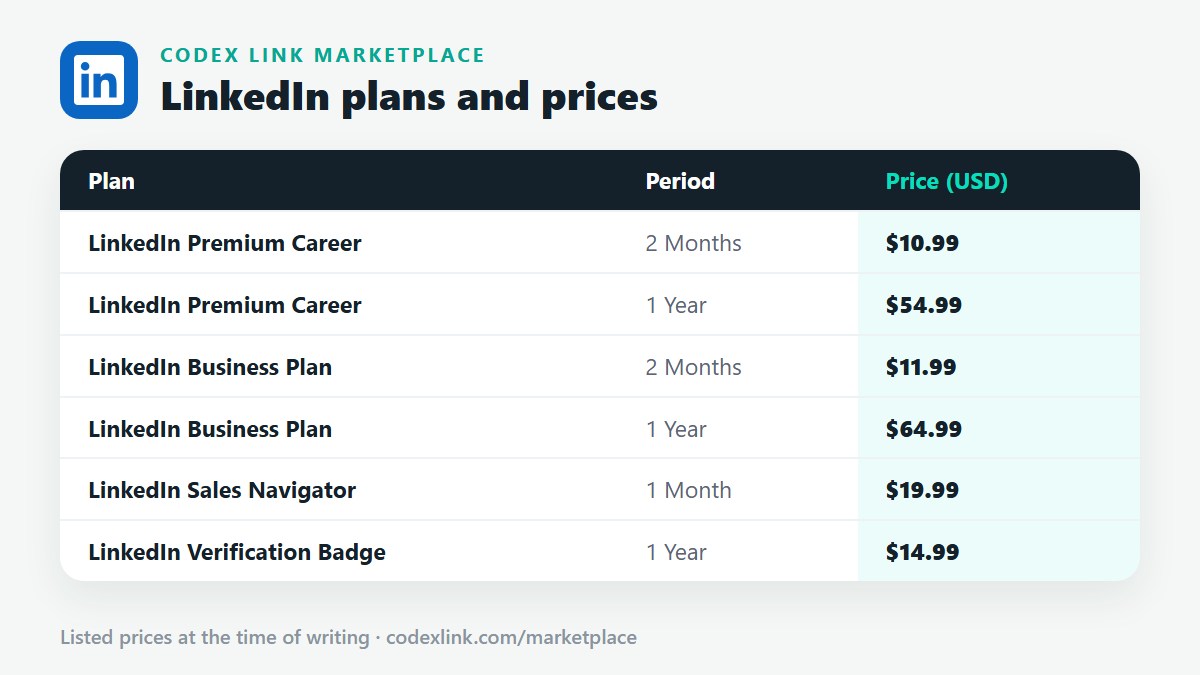
Other countries
LinkedIn verification in New Zealand
Where LinkedIn offers identity verification in New Zealand, it normally runs through Persona and requires a New Zealand ePassport, plus a phone with NFC. Local ID cards are often not accepted, so check the document list on the verification screen. If verification is not working, the usual causes are a passport without a readable chip, a profile name that differs from the document, or an outdated app. If the identity option is unavailable in New Zealand, verify your workplace with a company email instead.
LinkedIn verification in Japan
Where LinkedIn offers identity verification in Japan, it normally runs through Persona and requires a Japanese IC passport, plus a phone with NFC. Local ID cards are often not accepted, so check the document list on the verification screen. If verification is not working, the usual causes are a passport without a readable chip, a profile name that differs from the document, or an outdated app. If the identity option is unavailable in Japan, verify your workplace with a company email instead.
LinkedIn verification in South Korea
Where LinkedIn offers identity verification in South Korea, it normally runs through Persona and requires a South Korean ePassport, plus a phone with NFC. Local ID cards are often not accepted, so check the document list on the verification screen. If verification is not working, the usual causes are a passport without a readable chip, a profile name that differs from the document, or an outdated app. If the identity option is unavailable in South Korea, verify your workplace with a company email instead.
LinkedIn verification in China
LinkedIn closed its localised service in mainland China, so access and features there are limited and the verification option may not appear at all. Chinese professionals using LinkedIn from other countries can verify where they live, using a chip passport if Persona is the local partner. If identity verification is unavailable or fails, workplace verification with a supported company email is the alternative.
LinkedIn verification in Hong Kong
Where LinkedIn offers identity verification in Hong Kong, it normally runs through Persona and requires an HKSAR or other chip passport, plus a phone with NFC. Local ID cards are often not accepted, so check the document list on the verification screen. If verification is not working, the usual causes are a passport without a readable chip, a profile name that differs from the document, or an outdated app. If the identity option is unavailable in Hong Kong, verify your workplace with a company email instead.
LinkedIn verification in Taiwan
Where LinkedIn offers identity verification in Taiwan, it normally runs through Persona and requires a Taiwanese ePassport, plus a phone with NFC. Local ID cards are often not accepted, so check the document list on the verification screen. If verification is not working, the usual causes are a passport without a readable chip, a profile name that differs from the document, or an outdated app. If the identity option is unavailable in Taiwan, verify your workplace with a company email instead.
LinkedIn verification in Thailand
Where LinkedIn offers identity verification in Thailand, it normally runs through Persona and requires a Thai ePassport, plus a phone with NFC. Local ID cards are often not accepted, so check the document list on the verification screen. If verification is not working, the usual causes are a passport without a readable chip, a profile name that differs from the document, or an outdated app. If the identity option is unavailable in Thailand, verify your workplace with a company email instead.
LinkedIn verification in Vietnam
Where LinkedIn offers identity verification in Vietnam, it normally runs through Persona and requires a Vietnamese passport with a chip, plus a phone with NFC. Local ID cards are often not accepted, so check the document list on the verification screen. If verification is not working, the usual causes are a passport without a readable chip, a profile name that differs from the document, or an outdated app. If the identity option is unavailable in Vietnam, verify your workplace with a company email instead.
LinkedIn verification in Egypt
Where LinkedIn offers identity verification in Egypt, it normally runs through Persona and requires a chip passport, plus a phone with NFC. Local ID cards are often not accepted, so check the document list on the verification screen. If verification is not working, the usual causes are a passport without a readable chip, a profile name that differs from the document, or an outdated app. If the identity option is unavailable in Egypt, verify your workplace with a company email instead.
LinkedIn verification in Kenya
Where LinkedIn offers identity verification in Kenya, it normally runs through Persona and requires a Kenyan e-passport, plus a phone with NFC. Local ID cards are often not accepted, so check the document list on the verification screen. If verification is not working, the usual causes are a passport without a readable chip, a profile name that differs from the document, or an outdated app. If the identity option is unavailable in Kenya, verify your workplace with a company email instead.
LinkedIn verification in Ghana
Where LinkedIn offers identity verification in Ghana, it normally runs through Persona and requires a Ghanaian chip passport, plus a phone with NFC. Local ID cards are often not accepted, so check the document list on the verification screen. If verification is not working, the usual causes are a passport without a readable chip, a profile name that differs from the document, or an outdated app. If the identity option is unavailable in Ghana, verify your workplace with a company email instead.
LinkedIn verification in Mexico
In Mexico, LinkedIn has offered identity verification through CLEAR, the same partner used in the United States and Canada. You need an accepted Mexican government ID and a Mexican phone number. If verification is not working, check that the ID is current and the phone number is registered to you. If the option is missing, update the app, and use workplace verification by company email in the meantime.
LinkedIn verification in Argentina
Where LinkedIn offers identity verification in Argentina, it normally runs through Persona and requires an Argentine passport with a chip, plus a phone with NFC. Local ID cards are often not accepted, so check the document list on the verification screen. If verification is not working, the usual causes are a passport without a readable chip, a profile name that differs from the document, or an outdated app. If the identity option is unavailable in Argentina, verify your workplace with a company email instead.
LinkedIn verification in Chile
Where LinkedIn offers identity verification in Chile, it normally runs through Persona and requires a Chilean passport with a chip, plus a phone with NFC. Local ID cards are often not accepted, so check the document list on the verification screen. If verification is not working, the usual causes are a passport without a readable chip, a profile name that differs from the document, or an outdated app. If the identity option is unavailable in Chile, verify your workplace with a company email instead.
LinkedIn verification in Colombia
Where LinkedIn offers identity verification in Colombia, it normally runs through Persona and requires a Colombian passport with a chip, plus a phone with NFC. Local ID cards are often not accepted, so check the document list on the verification screen. If verification is not working, the usual causes are a passport without a readable chip, a profile name that differs from the document, or an outdated app. If the identity option is unavailable in Colombia, verify your workplace with a company email instead.
LinkedIn verification in Portugal
Where LinkedIn offers identity verification in Portugal, it normally runs through Persona and requires a Portuguese biometric passport, plus a phone with NFC. Local ID cards are often not accepted, so check the document list on the verification screen. If verification is not working, the usual causes are a passport without a readable chip, a profile name that differs from the document, or an outdated app. If the identity option is unavailable in Portugal, verify your workplace with a company email instead.
LinkedIn verification in Belgium
Where LinkedIn offers identity verification in Belgium, it normally runs through Persona and requires a Belgian biometric passport, plus a phone with NFC. Local ID cards are often not accepted, so check the document list on the verification screen. If verification is not working, the usual causes are a passport without a readable chip, a profile name that differs from the document, or an outdated app. If the identity option is unavailable in Belgium, verify your workplace with a company email instead.
LinkedIn verification in Sweden
Where LinkedIn offers identity verification in Sweden, it normally runs through Persona and requires a Swedish biometric passport, plus a phone with NFC. Local ID cards are often not accepted, so check the document list on the verification screen. If verification is not working, the usual causes are a passport without a readable chip, a profile name that differs from the document, or an outdated app. If the identity option is unavailable in Sweden, verify your workplace with a company email instead.
LinkedIn verification in Norway
Where LinkedIn offers identity verification in Norway, it normally runs through Persona and requires a Norwegian biometric passport, plus a phone with NFC. Local ID cards are often not accepted, so check the document list on the verification screen. If verification is not working, the usual causes are a passport without a readable chip, a profile name that differs from the document, or an outdated app. If the identity option is unavailable in Norway, verify your workplace with a company email instead.
LinkedIn verification in Denmark
Where LinkedIn offers identity verification in Denmark, it normally runs through Persona and requires a Danish biometric passport, plus a phone with NFC. Local ID cards are often not accepted, so check the document list on the verification screen. If verification is not working, the usual causes are a passport without a readable chip, a profile name that differs from the document, or an outdated app. If the identity option is unavailable in Denmark, verify your workplace with a company email instead.
LinkedIn verification in Switzerland
Where LinkedIn offers identity verification in Switzerland, it normally runs through Persona and requires a Swiss biometric passport, plus a phone with NFC. Local ID cards are often not accepted, so check the document list on the verification screen. If verification is not working, the usual causes are a passport without a readable chip, a profile name that differs from the document, or an outdated app. If the identity option is unavailable in Switzerland, verify your workplace with a company email instead.
LinkedIn verification in Poland
Where LinkedIn offers identity verification in Poland, it normally runs through Persona and requires a Polish biometric passport, plus a phone with NFC. Local ID cards are often not accepted, so check the document list on the verification screen. If verification is not working, the usual causes are a passport without a readable chip, a profile name that differs from the document, or an outdated app. If the identity option is unavailable in Poland, verify your workplace with a company email instead.
LinkedIn verification in Austria
Where LinkedIn offers identity verification in Austria, it normally runs through Persona and requires an Austrian biometric passport, plus a phone with NFC. Local ID cards are often not accepted, so check the document list on the verification screen. If verification is not working, the usual causes are a passport without a readable chip, a profile name that differs from the document, or an outdated app. If the identity option is unavailable in Austria, verify your workplace with a company email instead.
LinkedIn verification in Finland
Where LinkedIn offers identity verification in Finland, it normally runs through Persona and requires a Finnish biometric passport, plus a phone with NFC. Local ID cards are often not accepted, so check the document list on the verification screen. If verification is not working, the usual causes are a passport without a readable chip, a profile name that differs from the document, or an outdated app. If the identity option is unavailable in Finland, verify your workplace with a company email instead.
LinkedIn verification in Qatar
Where LinkedIn offers identity verification in Qatar, it normally runs through Persona and requires a chip passport, plus a phone with NFC. Local ID cards are often not accepted, so check the document list on the verification screen. If verification is not working, the usual causes are a passport without a readable chip, a profile name that differs from the document, or an outdated app. If the identity option is unavailable in Qatar, verify your workplace with a company email instead.
LinkedIn verification in Kuwait
Where LinkedIn offers identity verification in Kuwait, it normally runs through Persona and requires a chip passport, plus a phone with NFC. Local ID cards are often not accepted, so check the document list on the verification screen. If verification is not working, the usual causes are a passport without a readable chip, a profile name that differs from the document, or an outdated app. If the identity option is unavailable in Kuwait, verify your workplace with a company email instead.
LinkedIn verification in Oman
Where LinkedIn offers identity verification in Oman, it normally runs through Persona and requires a chip passport, plus a phone with NFC. Local ID cards are often not accepted, so check the document list on the verification screen. If verification is not working, the usual causes are a passport without a readable chip, a profile name that differs from the document, or an outdated app. If the identity option is unavailable in Oman, verify your workplace with a company email instead.
LinkedIn verification in Bahrain
Where LinkedIn offers identity verification in Bahrain, it normally runs through Persona and requires a chip passport, plus a phone with NFC. Local ID cards are often not accepted, so check the document list on the verification screen. If verification is not working, the usual causes are a passport without a readable chip, a profile name that differs from the document, or an outdated app. If the identity option is unavailable in Bahrain, verify your workplace with a company email instead.
What if my country is not listed here?
The same approach applies anywhere. Open About this profile in the LinkedIn app and see which methods are offered. If identity verification is shown, read the accepted document list, which in most countries means a chip passport. If it is not shown, the feature has not reached your country yet. Workplace verification through a supported company email is available regardless of location, and LinkedIn keeps adding countries over time.
LinkedIn plans and prices on CodeX Link
These are the LinkedIn plans listed on the CodeX Link marketplace at the time of writing. Message the team on WhatsApp to confirm the price and how activation works before you order.
| Plan | Period | CodeX Link price |
|---|---|---|
| LinkedIn Premium Career | 2 Months | $10.99 |
| LinkedIn Premium Career | 1 Year | $54.99 |
| LinkedIn Business Plan | 2 Months | $11.99 |
| LinkedIn Business Plan | 1 Year | $64.99 |
| LinkedIn Sales Navigator | 1 Month | $19.99 |
| LinkedIn Verification Badge | 1 Year | $14.99 |
Need a LinkedIn plan?
Chat with the CodeX Link team for the current price and activation details, or browse every tool in the marketplace.
LinkedIn is a trademark of its owner. Features, limits and prices change over time and differ by country, so confirm the current terms on LinkedIn before you buy.