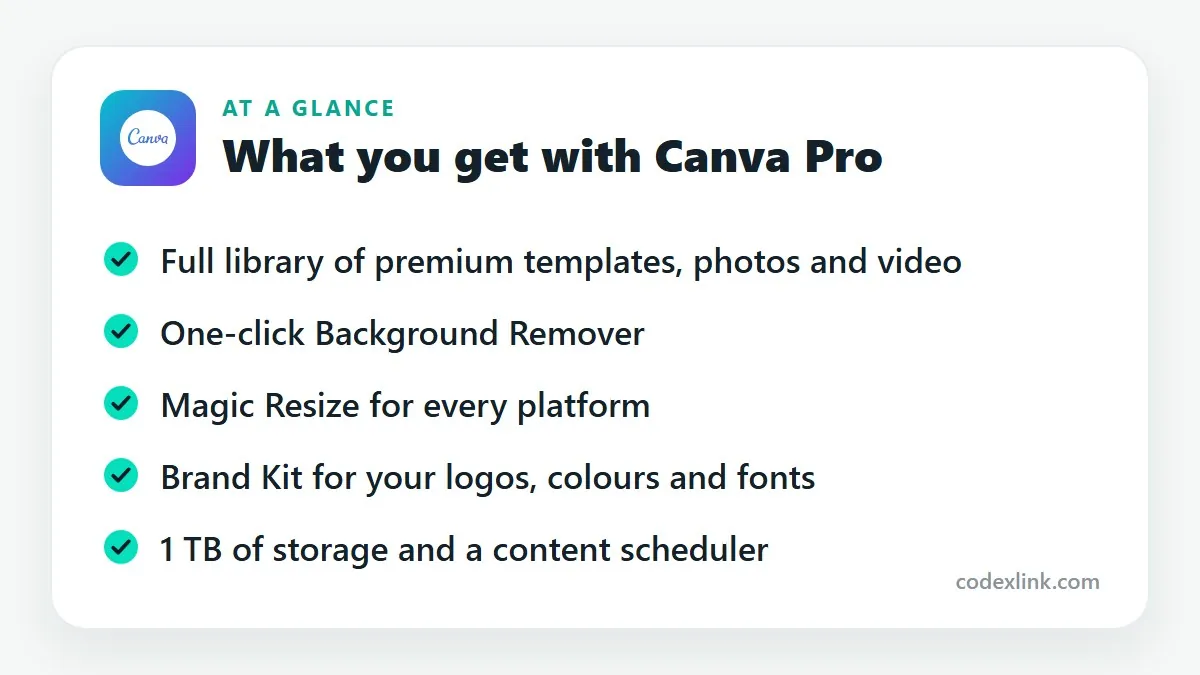
Canva Pro is the paid version of Canva. It unlocks the full library of premium templates and stock content, plus Background Remover, Magic Resize, Brand Kit, 1 TB of storage and a social media scheduler.
Key takeaways
- Canva Pro unlocks the full template and stock library, plus tools that save time: Background Remover, Magic Resize and Brand Kit.
- It's most valuable if you make designs every week for a business, a client or a social media account.
- If you design something a few times a year, the free plan is enough.
Free Canva is generous enough that you can use it for years. Then one afternoon you need to remove a background from a product photo, or resize one post for five platforms, and each of those buttons has a small crown on it.
That crown is Canva Pro. Here's what's behind it.
What Canva Pro adds
The full content library. Free Canva includes plenty of templates and photos, but the best ones are marked Pro. With a subscription you can use every template, stock photo, video clip, audio track and graphic without paying per item.
Background Remover. One click cuts the subject out of a photo. For product shots, profile pictures and thumbnails, this alone replaces a separate editing tool.
Magic Resize. Design once, then convert it to an Instagram post, a story, a LinkedIn banner and a YouTube thumbnail in a few clicks. Anyone posting to several platforms uses this constantly.
Brand Kit. Save your logos, colour palette and fonts once, and they're available in every design. You can upload your own fonts, which the free plan doesn't allow.
Storage and scheduling. Pro includes 1 TB of storage, and a content planner that schedules posts straight to social media accounts.
Extra export options. Download with a transparent background, export as SVG, and compress or resize files on export.
Canva also bundles its AI tools into Pro with higher usage allowances than the free plan, including text-to-image generation and tools for erasing or expanding parts of a photo.
Free vs Pro: where the line really is
You can produce good-looking work on the free plan. What Pro buys is speed and consistency.
Without Pro, removing a background means another app. Resizing means rebuilding the design. Keeping brand colours consistent means copying hex codes from a note. None of that is hard. It is slow, and it adds up when you're producing ten designs a week.
So the honest test is volume. Count how many designs you made last month. If the answer is more than a handful, Pro pays for itself in time. If it's two, it doesn't.
Who benefits most
- Small business owners who make their own social posts, menus, flyers and price lists.
- Social media managers handling several brands.
- Freelancers who need client work to look consistent.
- Teachers, students and content creators producing slides and thumbnails regularly.
Professional designers working on complex print or illustration projects will still want dedicated software such as Adobe Creative Cloud. Canva is quicker for everyday marketing material, not a replacement for Illustrator or InDesign.
Tips that make Pro worth having
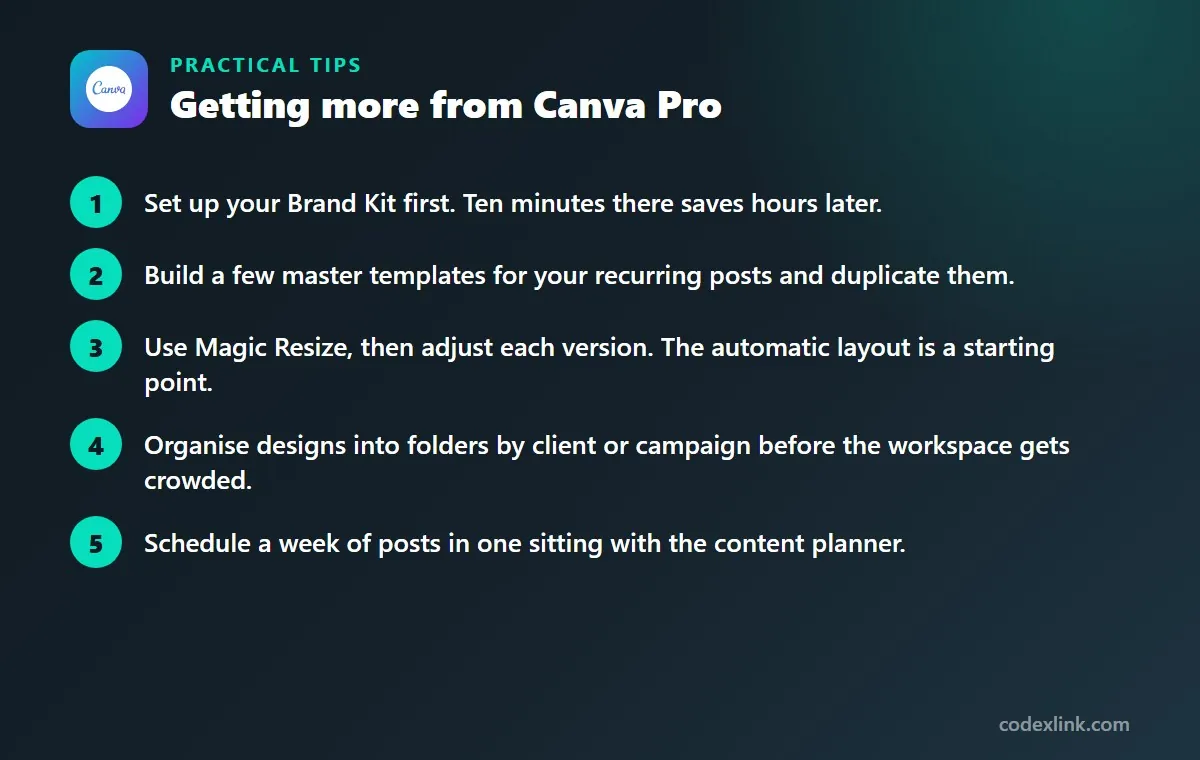
- Set up your Brand Kit first. Ten minutes there saves hours later.
- Build a few master templates for your recurring posts and duplicate them.
- Use Magic Resize, then adjust each version. The automatic layout is a starting point.
- Organise designs into folders by client or campaign before the workspace gets crowded.
- Schedule a week of posts in one sitting with the content planner.
Canva Pro availability and pricing around the world
Canva Pro is available worldwide and the editor is translated into more than 100 languages. Canva uses regional pricing, so in many countries the subscription costs less than the headline US price.
Canva also offers free access to its premium features for eligible teachers, students and registered nonprofits. If you qualify, apply for those programmes before paying for Pro.
Canva Free vs Canva Pro: quick comparison
| Feature | Canva Free | Canva Pro |
|---|---|---|
| Templates, photos and videos | Free selection | Full premium library |
| Background Remover | Not included | Included |
| Magic Resize | Not included | Included |
| Brand Kit and custom fonts | Limited | Full, with font uploads |
| Storage | 5 GB | 1 TB |
Canva Pro pros and cons
Pros
- Saves real time on resizing and background removal
- Keeps brand colours, fonts and logos consistent
- No per-item fees for premium stock content
Cons
- Unnecessary if you design only occasionally
- Not a replacement for professional design software
- Pro elements are restricted if you cancel
Getting started with Canva Pro, step by step
A new Pro account is most useful when you set it up once, properly, before you start designing. These steps take about thirty minutes and save hours later.
- Create your Brand Kit. Upload your logo in light and dark versions, add your brand colours as hex codes and choose a heading and body font. Every template can then switch to your brand in one click.
- Organise folders. Create folders such as Social, Ads, Presentations and Print, and save uploads into them so your library stays searchable.
- Save your best designs as templates. Turn a finished Instagram post or proposal into a reusable template so the next one starts at 80% done.
- Connect your channels. Link the social accounts you post to, so you can schedule from the Content Planner instead of downloading and re-uploading.
- Set default export settings. Learn when to use PNG (sharp graphics), JPG (photos), PDF Print (with bleed for printers) and MP4 (video).
Canva Pro for businesses and teams
Canva Pro is an individual plan. Businesses where several people design usually look at Canva Teams, which adds shared Brand Kits, team folders, roles and approval workflows. A practical setup for a small business is:
- One designer or marketer on Pro who builds templates and the Brand Kit.
- Templates shared as view or edit links so colleagues can make small changes without breaking the layout.
- Locked elements on logos and key layout pieces, so text can change but the brand stays consistent.
- A move to Teams once three or more people edit designs every week.
Common business uses include social media calendars, product and price graphics, restaurant menus, real estate listings, event posters, pitch decks, invoices and short promotional videos with captions.
Canva Pro alternatives
Canva is the easiest tool for non-designers, but it is not the only option. Choose by the kind of work you do most.
- Adobe Express: similar quick-design tool, useful if you already use Adobe Creative Cloud. See our Adobe Creative Cloud guide.
- Figma: better for designing websites, apps and interfaces, and for developer handoff. See our Figma Professional guide.
- Photoshop and Illustrator: professional control over photos and vector artwork, with a steeper learning curve.
- AI image generators: such as Midjourney, for original artwork you then lay out in Canva. See our Midjourney guide.
Many businesses use two tools together: an AI generator or photo editor for raw images, and Canva for layouts, text and brand consistency.
Mistakes to avoid with Canva Pro
- Skipping the Brand Kit: without it, every design drifts from your real colours and fonts.
- Exporting print work as PNG: printers usually need PDF Print with crop marks and bleed.
- Using Pro elements in a free account: designs with Pro content show watermarks after a plan ends; keep a record of which designs use Pro elements.
- Breaking licence rules: Canva content can be used commercially in designs, but stock items generally cannot be resold on their own or used as trademarks. Check Canva's licence before using an element in a logo.
- Sharing logins: sharing one account between several people breaks most terms and risks losing designs. Use proper sharing or a team plan.
Is Canva Pro right for you? A quick checklist
Answer these questions honestly before paying. If you tick three or more, Pro will usually save you more time than it costs.
- You create five or more designs a week for social media, ads or clients.
- You remove photo backgrounds or resize designs for several platforms regularly.
- You need your exact brand fonts, colours and logos in every design.
- You want access to premium photos, videos and templates without buying stock separately.
- You schedule social posts and would like to do it from the same tool.
- Several people in your business need designs that look consistent.
Getting Canva Pro through CodeX Link
Canva Pro is available in the CodeX Link marketplace. Contact the team on WhatsApp for the current price and to confirm how Pro access is added to your own Canva account.
How to order
- Choose Canva Pro on the marketplace.
- Message the team on WhatsApp to confirm the price, plan and activation steps.
- Complete activation and start using it.
Frequently asked questions
Is Canva Pro worth it?
It is worth it if you create designs every week. The Background Remover, Magic Resize and Brand Kit save enough time to justify the cost. Occasional users can stay on the free plan.
What is the difference between Canva free and Canva Pro?
Pro adds the full premium library, Background Remover, Magic Resize, Brand Kit with custom fonts, 1 TB of storage, post scheduling and extra export options such as transparent backgrounds.
Can I use Canva Pro designs for commercial work?
Yes, Canva's licence allows commercial use of designs you create, with some restrictions, such as not reselling stock content unaltered or using it in a trademark. Check Canva's licence terms for your specific case.
Does Canva Pro work on mobile?
Yes. Your Pro features are available in the Canva apps for iPhone, iPad and Android as well as in the browser and desktop apps.
Can I cancel Canva Pro and keep my designs?
Yes. Your designs remain in your account. Pro-only elements used in them may need to be purchased or replaced if you want to download those designs again.
Is Canva Pro cheaper in some countries?
Yes. Canva sets prices by region, and they are lower in many countries than in the United States. The price shown in your own account is the one that applies to you.
How much does Canva Pro cost?
The official price is set by the provider and varies by country, plan and billing period. CodeX Link has special offers on Canva Pro; ask the team on WhatsApp for today's price.
How do I buy Canva Pro from CodeX Link?
Choose Canva Pro on the CodeX Link marketplace, then message the team on WhatsApp to confirm the price and plan. They guide you through payment and activation.
Interested in Canva Pro?
Chat with the CodeX Link team for the current price and activation details, or browse every tool in the marketplace.
Product names and logos belong to their respective owners. Features and plan details change over time, so confirm the current terms with the provider before you buy.