


A few years ago, a custom image meant a photoshoot or a designer's time. Now a well-written sentence can produce a usable visual in seconds. That does not make every tool equal: some excel at artistic quality, some at following detailed instructions, and some at fitting into the design apps you already use. This guide compares the leading options and teaches you how to get good results from any of them.
The quick answer
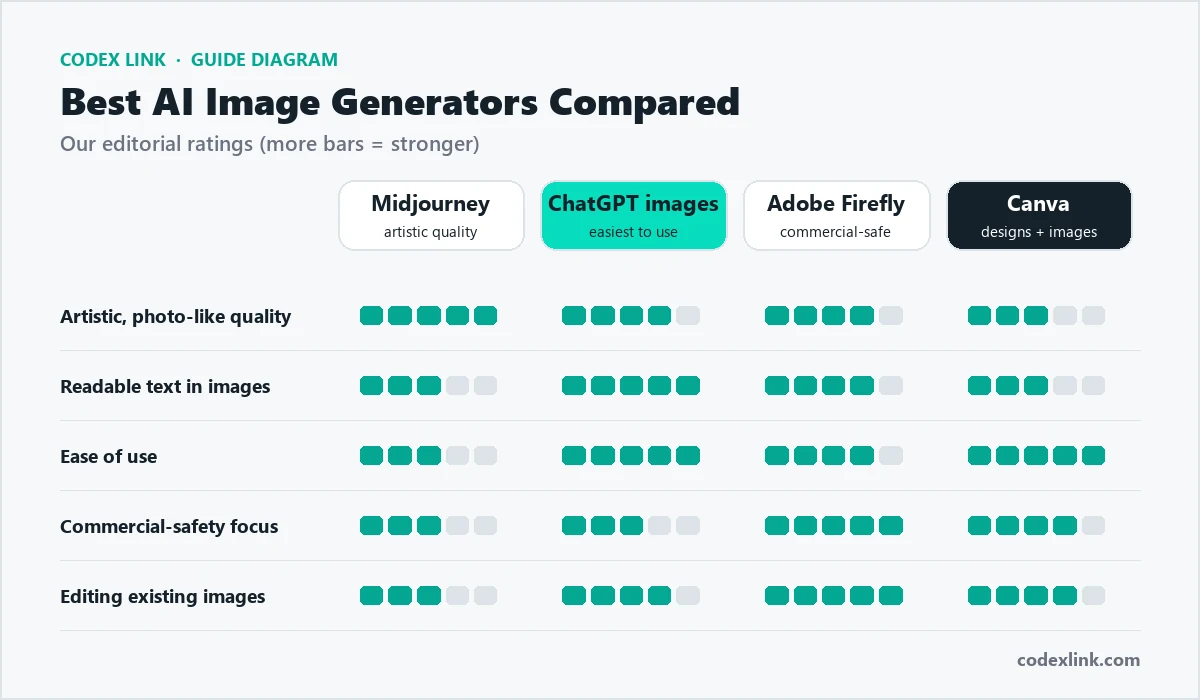
- Best image quality: Midjourney.
- Easiest to use and best at text in images: ChatGPT.
- Best for professional editing and a commercial focus: Adobe Firefly.
- Best for turning images into marketing designs: Canva.
Midjourney
Midjourney is widely regarded as the leader for striking, artistic and photo-realistic images. It is popular with designers, agencies and brands for campaign concepts, editorial visuals and mood boards. It works through its website and Discord, and offers tools to create variations, upscale images, edit regions and keep a consistent style or character across images.
- Strengths: beautiful lighting and composition, strong style control, consistent results once you learn it.
- Limitations: takes practice to master prompts and parameters; images on lower plans are visible in the public gallery unless you use a plan with Stealth Mode.
Our Midjourney Pro guide explains the plans, fast GPU time and Stealth Mode.
ChatGPT image generation
ChatGPT can create images directly in a conversation, and you refine them by simply asking for changes: "make the background blue", "add our slogan at the top". It is particularly good at following detailed instructions and rendering readable text, which makes it useful for posters, infographics and social graphics.
- Strengths: very easy, conversational editing, good text rendering, combines with writing in one tool.
- Limitations: less fine artistic control than Midjourney; usage limits depend on your plan.
See our ChatGPT Plus guide for what the paid plan includes.
Adobe Firefly
Firefly is Adobe's family of generative AI models, built into Photoshop, Illustrator, Adobe Express and the Firefly web app. Its standout features are Generative Fill and Generative Expand in Photoshop, which add, remove or extend parts of a real photo using a text description. Adobe designed Firefly with commercial use in mind, which matters to brands and agencies.
- Strengths: professional editing of real photos, works inside Adobe apps, commercial focus.
- Limitations: most powerful inside paid Adobe apps; uses generative credits.
Read our Adobe Creative Cloud guide.
Canva AI images
Canva's Magic Studio can generate images and place them straight into your social posts, presentations and ads. The image quality is good for everyday marketing, and the real advantage is speed: you go from idea to finished, on-brand design in one place.
- Strengths: fastest route to a finished design, brand kit, templates and resizing in one tool.
- Limitations: less control and artistic quality than specialist generators.
See our Canva Pro guide.
Other options worth knowing
- Google Gemini: creates and edits images inside Google's assistant.
- Microsoft Copilot and Designer: image creation inside Microsoft's tools.
- Ideogram: known for strong text rendering in designs and logos.
- Stable Diffusion and other open models: can run on your own computer or servers, offering full control for technical users.
Side-by-side comparison
| Midjourney | ChatGPT | Adobe Firefly | Canva | |
|---|---|---|---|---|
| Image quality | Excellent | Very good | Very good | Good |
| Text in images | Good | Excellent | Very good | Good |
| Ease of use | Moderate | Very easy | Easy | Very easy |
| Edit real photos | Limited | Yes | Excellent | Yes |
| Best for | Campaign visuals and art | Quick graphics with text | Professional photo editing | Finished marketing designs |
How to write a great image prompt
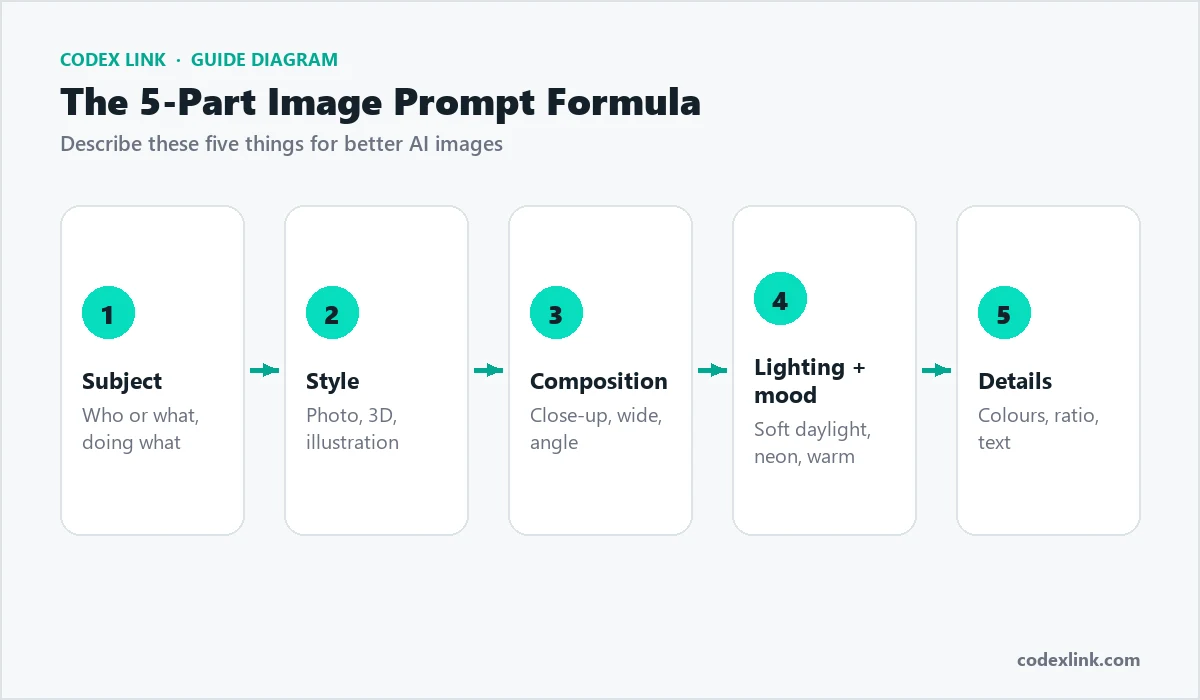
- Subject: who or what is in the image, and what they are doing.
- Style: photograph, 3D render, flat illustration, watercolour, minimal line art.
- Composition: close-up, wide shot, top-down, centred, with space for text.
- Lighting and mood: soft daylight, golden hour, studio lighting, neon, calm, energetic.
- Details: colours, background, aspect ratio and any text that must appear.
A weak prompt:
coffee shop
A strong prompt using the formula:
A barista pouring latte art in a cosy modern coffee shop,
professional photograph, close-up at counter height,
warm morning sunlight through the window, calm mood,
wooden counter, green plants in the background,
empty space on the left for a headline, 4:5 ratio
A prompt for a social media graphic with text (works well in ChatGPT):
A clean, modern Instagram post for a web hosting company.
Dark navy background with teal accents.
Large headline text: "Your Website, Always Online".
A simple illustration of a server and a cloud.
Square 1:1 format, lots of white space, no other text.
Aspect ratios explained
The aspect ratio is the shape of the image. Choosing the right one before you generate saves cropping later.
| Ratio | Shape | Use it for |
|---|---|---|
| 1:1 | Square | Instagram and Facebook feed posts, profile images |
| 4:5 | Tall rectangle | Instagram portrait posts, which take more space in the feed |
| 9:16 | Vertical | Stories, Reels, TikTok and phone wallpapers |
| 16:9 | Widescreen | YouTube thumbnails, website banners and presentations |
| 1.91:1 | Wide | Link previews on Facebook and LinkedIn (1200 x 630) |
In Midjourney you set the ratio with a parameter such as --ar 16:9. In ChatGPT, Firefly and Canva you can simply say "in 16:9 widescreen format" or choose the size from a menu.
Editing techniques you should know
- Variations: create several versions of an image you like and pick the best.
- Inpainting: select part of an image and regenerate only that area, for example to fix a hand or change a product colour. In Photoshop this is Generative Fill.
- Outpainting: extend an image beyond its edges, for example to turn a square photo into a wide banner. In Photoshop this is Generative Expand; Midjourney offers zoom and pan.
- Upscaling: increase resolution for print or large screens.
- Reference images: give the tool an image to match style, composition or a character.
- Background removal: isolate a product or person, available in Canva, Adobe and many other tools.
Prompt examples by industry
Restaurant:
Overhead photograph of a colourful chicken biryani on a copper plate,
fresh herbs and lemon, rustic wooden table, natural window light,
appetising and vibrant, 1:1 ratio
Real estate:
Bright modern living room with large windows and city view at sunset,
neutral furniture, wooden floor, professional interior photography,
wide angle, warm and inviting, 16:9 ratio
Fashion:
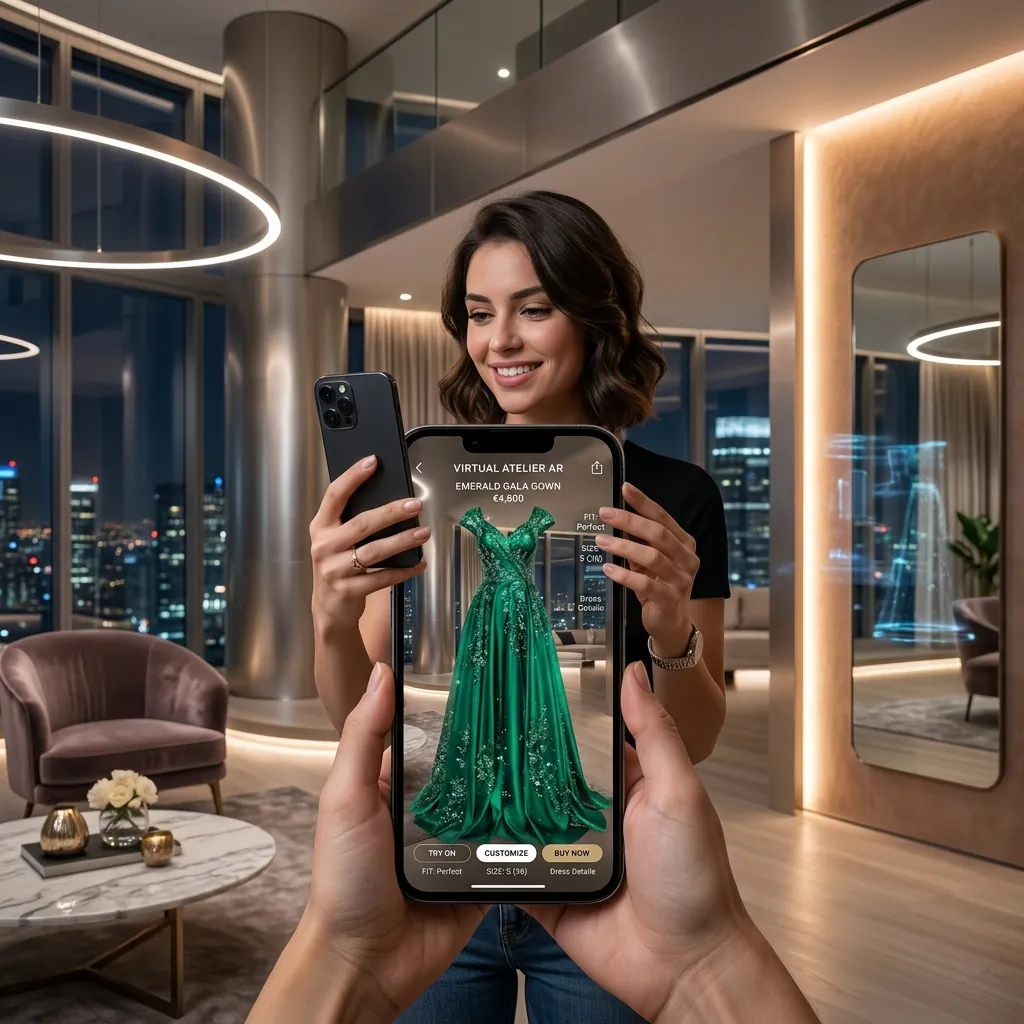
Model wearing an emerald green evening dress in a luxury boutique,
fashion editorial photograph, soft studio lighting,
elegant pose, shallow depth of field, 4:5 ratio
Technology company:
Isometric 3D illustration of cloud servers connected by glowing lines,
dark navy background with teal highlights, clean and minimal,
space at the top for a headline, 16:9 ratio
Education:
Friendly flat illustration of students learning online at home,
laptops and books, warm pastel colours, simple shapes,
happy and focused mood, 1:1 ratio
Business use cases
Social media
Create on-brand visuals for posts, stories and seasonal campaigns, then add your logo and text in Canva.
Advertising
Test several visual concepts quickly before investing in a photoshoot. Use the winning concept as a brief for a photographer, or use the AI image directly where appropriate.
Websites and blogs
Produce unique header images and illustrations instead of generic stock photos. Compress them to WebP so pages stay fast.
Product mockups and packaging
Visualise packaging ideas, product colours and display concepts before production.
Presentations and pitches
Create custom images that explain an idea, rather than repeating the same stock photos everyone else uses.
Commercial use and copyright
Before using AI images commercially, check three things:
- The tool's terms: each provider sets rules on commercial use, often tied to paid plans.
- Real people and brands: do not create images of real people, logos or trademarks you do not have permission to use.
- Copyright protection: in many countries, purely AI-generated images may have limited copyright protection, so you may not be able to stop others reusing them.
Common mistakes
- Vague prompts: "a nice office" gives generic results. Describe the scene.
- Ignoring hands, text and details: always zoom in and check for distortions before publishing.
- Inconsistent style: pick one style and reuse its prompt so your feed looks like one brand.
- Huge files on websites: resize and convert to WebP before uploading.
- Misleading images: do not present AI images as real photos of your products, team or location.
Keeping a consistent brand style
A consistent look makes your content recognisable. Create a short style prompt and reuse it at the end of every image prompt.
A reusable brand style suffix:
...in a clean, modern style, dark navy and teal colour palette,
soft studio lighting, minimal background, high detail
Midjourney also offers style and character reference features that help keep a consistent look and recurring characters across many images.
From AI image to finished design: a workflow
- Generate the base image in Midjourney or ChatGPT.
- Fix or extend details in Photoshop with Generative Fill, if needed.
- Place the image in a Canva template with your logo, fonts and headline.
- Use Magic Resize to create versions for each platform.
- Export as WebP for your website and JPG or PNG for social media.
Choosing the right plan
Most generators offer free trials or limited free use, with paid plans for more images, faster generation, higher resolution and commercial use. If you create images every week, a paid plan quickly pays for itself compared with stock photos or photoshoots. If you only need occasional images, the image features included in ChatGPT or Canva may be enough.
Genuine Midjourney, ChatGPT, Canva Pro and Adobe Creative Cloud subscriptions are available in the CodeX Link marketplace.
Image quality checklist before you publish
- Hands, faces and eyes look natural.
- Any text is spelled correctly.
- No unwanted logos, watermarks or strange objects.
- Colours match your brand.
- The image is the right size and compressed for its use.
- You have descriptive alt text for websites, which also helps the image appear in Google Images.
Using AI images responsibly
AI images are powerful, so use them in ways that build trust:
- Be honest: if an image is a concept or illustration, do not present it as a real photo of your product, premises or customers.
- Avoid stereotypes: review images of people for fair, respectful representation.
- Respect other creators: do not ask tools to copy a living artist's specific work or a competitor's branding.
- Label AI images where your industry or platform expects it, such as some advertising and news contexts.
Following these simple rules protects your reputation and keeps your marketing trustworthy as AI imagery becomes more common.
Our recommendation
Use Midjourney when visual quality is the top priority, such as campaigns and hero images. Use ChatGPT for quick graphics with text and easy edits. Use Adobe Firefly for professional photo editing and extensions. Use Canva to turn images into finished, on-brand marketing designs. Many teams use two: one generator for images and Canva for layouts.
How CodeX Link can help
Get genuine Midjourney Pro, ChatGPT Plus and Canva Pro subscriptions with instant activation from our marketplace. Want visuals created for you? Our social media team produces on-brand content every month.