Figma Professional is Figma's paid plan for freelancers and small teams. It removes the file and page limits of the free Starter plan and adds shared team libraries, unlimited version history, advanced prototyping and Dev Mode.
Key takeaways
- Figma's free Starter plan limits the number of files and pages in a team. Professional removes those limits.
- Shared team libraries and full version history are the features that change how a design team works.
- Figma charges per seat, and seat types differ, so only pay for the people who need to edit.
Figma became the default tool for interface design partly because the free plan is so usable. You can learn it, build a portfolio and even ship a small product without paying.
The limits show up when the work gets serious or when a second person joins. That's what the Professional plan is for.
What Figma is
Figma is a browser-based design tool for websites, apps and other digital products. Everything lives online, so several people can work in the same file at once, leave comments and see changes as they happen. It also includes FigJam for whiteboarding and tools for turning static screens into clickable prototypes.
Where the Starter plan stops
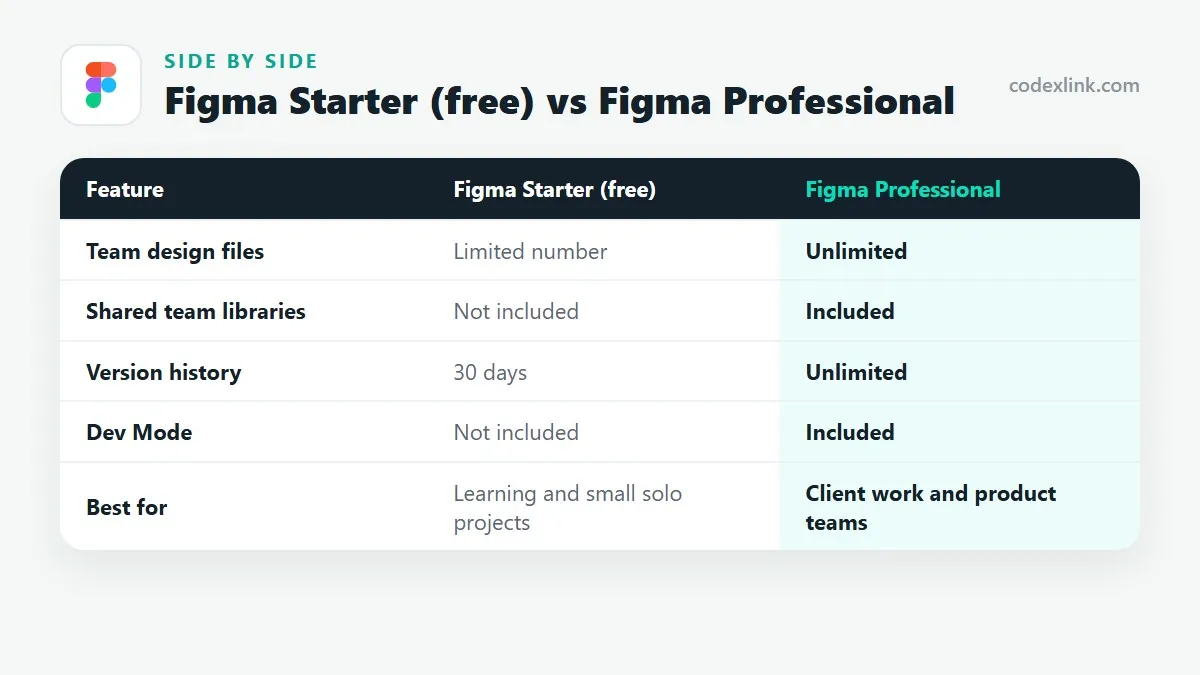
The free Starter plan allows unlimited personal drafts, but files shared in a team are capped at a small number, and each file can hold only a few pages. Version history covers 30 days.
For a student, that's fine. For a real project with several flows, a component library and months of iteration, you run out of room.
What Professional adds
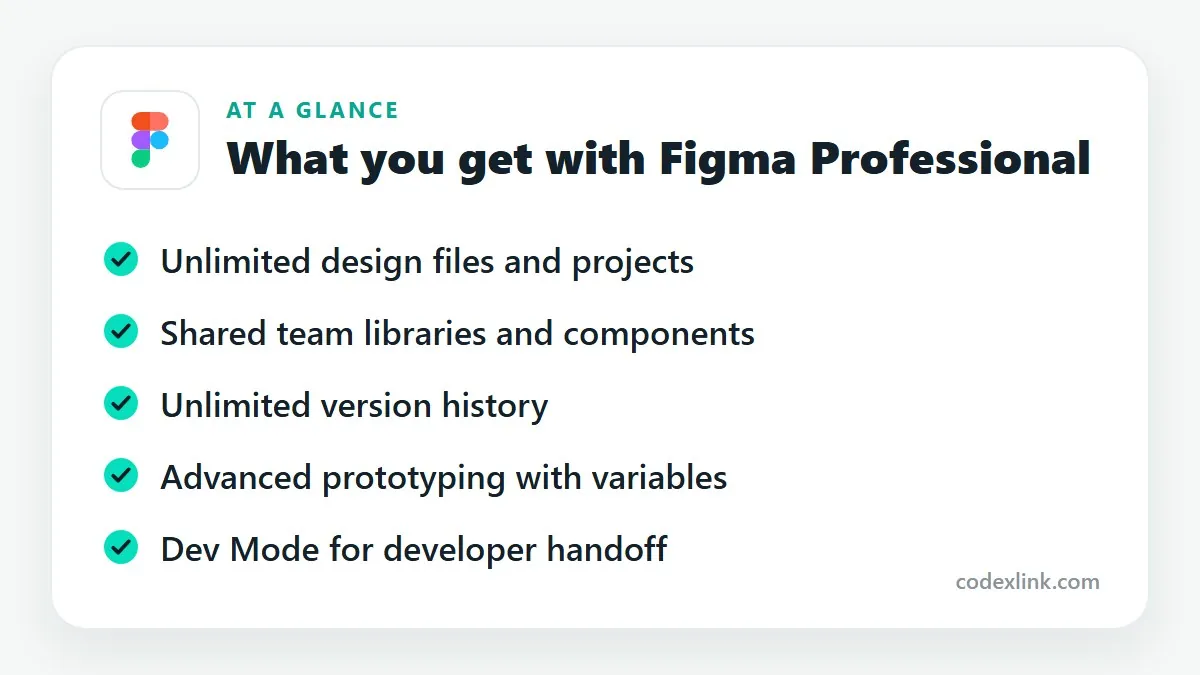
Unlimited files and pages. No cap on team files, projects or pages within a file.
Team libraries. Publish components, colours and text styles once and use them across every file. Update a button in the library and it updates everywhere. This is the single biggest reason teams upgrade, because it turns a pile of files into a design system.
Unlimited version history. Go back to any earlier state of a file, name versions at milestones and restore them.
Advanced prototyping. Variables, conditional logic and multiple modes let prototypes behave like the real product, including light and dark themes.
Dev Mode. A view built for developers, showing measurements, spacing, code snippets and what changed since the last handoff.
Sharing controls. Private projects, permission settings and audio conversations inside files.
Understanding seats
Figma bills per seat, and not everyone needs the same kind. People who design need full seats. Developers who only inspect files need Dev Mode access. Stakeholders who just view and comment can stay free.
Figma has adjusted its seat types and prices in recent years, so check the current structure before you budget. The principle hasn't changed: pay for editors, not for viewers.
Who should upgrade
- Freelance designers handling several client projects.
- Product teams that need a shared component library.
- Agencies that hand designs to developers regularly.
If you're learning Figma or designing one small project alone, the Starter plan is enough. Organisations that need central admin, single sign-on and design system analytics are served by the Organization and Enterprise tiers.
Good habits once you're on Professional
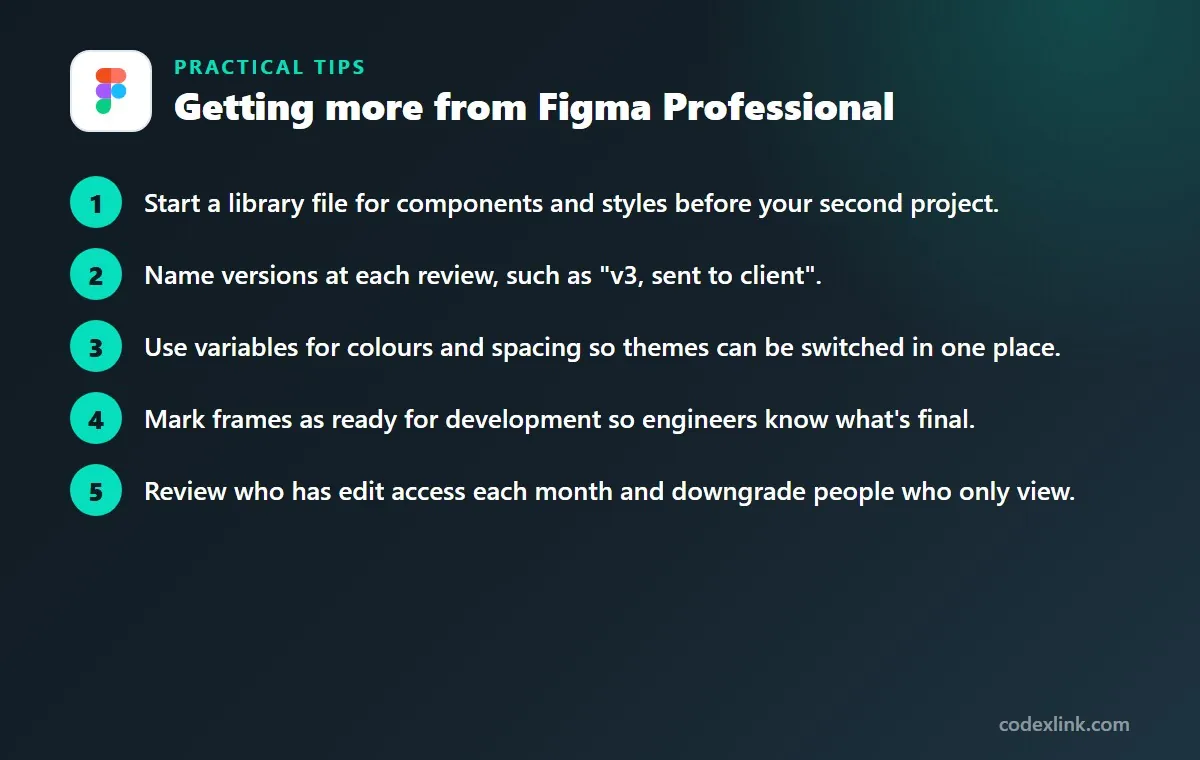
- Start a library file for components and styles before your second project.
- Name versions at each review, such as "v3, sent to client".
- Use variables for colours and spacing so themes can be switched in one place.
- Mark frames as ready for development so engineers know what's final.
- Review who has edit access each month and downgrade people who only view.
Figma Professional availability and pricing around the world
Figma runs in the browser, so it is available almost anywhere. Pricing is in US dollars for most customers, with local currency in some markets and tax added where required.
Verified students and educators can use Figma's paid features free through its education plan, which is worth checking before you pay for a Professional seat.
Figma Starter (free) vs Figma Professional: quick comparison
| Feature | Figma Starter (free) | Figma Professional |
|---|---|---|
| Team design files | Limited number | Unlimited |
| Shared team libraries | Not included | Included |
| Version history | 30 days | Unlimited |
| Dev Mode | Not included | Included |
| Best for | Learning and small solo projects | Client work and product teams |
Figma Professional pros and cons
Pros
- Shared libraries keep every file consistent
- No limits on files, pages or history
- Dev Mode makes developer handoff clearer
Cons
- Billed per editor seat
- Seat types and pricing change, so budgets need checking
- More than a beginner needs
Getting started with Figma Professional, step by step
- Create a team and projects for each client or product, so files and permissions stay organised.
- Build a small design system first: colours, text styles, spacing and a few core components such as buttons, inputs and cards.
- Use Auto Layout for components, so they resize properly for different content and screen sizes.
- Publish a team library, so every file uses the same components and updates flow everywhere.
- Prototype key flows such as sign-up or checkout and test them with real users before development.
Figma for teams and developers
Figma's biggest advantage is collaboration: designers, developers, product managers and clients can view and comment on the same file in the browser, with no files to send back and forth.
- Developer handoff: developers can inspect measurements, colours and assets, and export images in the formats they need.
- Comments and reviews: stakeholders leave comments directly on the design, keeping feedback in one place.
- Version history: restore earlier versions and name important milestones.
- FigJam: online whiteboards for workshops, user flows and brainstorming.
CodeX Link uses design-first workflows for website and mobile app development, so clients approve screens before development starts.
Alternatives to Figma
- Sketch: a Mac-only interface design tool with a long history.
- Adobe XD: Adobe has stopped active development, so most teams have moved to Figma.
- Penpot: an open-source, browser-based design tool.
- Canva: great for marketing graphics, not for detailed app and website interfaces. See our Canva Pro guide.
Compare design tools side by side in Canva Pro vs Adobe vs Figma.
Mistakes to avoid
- Detaching components: detached copies stop receiving updates; use variants and overrides instead.
- No naming conventions: unnamed layers make handoff slow and error-prone.
- Designing only for desktop: design mobile layouts too; most website visitors use phones.
- Uncontrolled sharing: check link permissions before sharing client work outside your team.
- Ignoring accessibility: check colour contrast and text sizes while designing, not after launch.
Free or Professional: how to decide
Figma's free plan is excellent for learning and small personal projects. Professional is built for people who design for clients or products.
- You need unlimited projects and files rather than the free limits.
- You want a shared team library of components and styles.
- You need longer version history for client work.
- You collaborate with developers who inspect designs and export assets.
- You manage several clients and need private projects and permissions.
Larger organisations with many designers usually look at the Organization or Enterprise plans for central administration and design system analytics.
A real Figma project, from idea to handoff
Figma covers the whole design process for a website or app. A typical small project follows these stages, all inside one shared file or project.
- Research and flows: map user journeys in FigJam with the client.
- Wireframes: grey boxes to agree on structure before any colour or images.
- Visual design: apply the brand and build reusable components.
- Prototype: link screens so the client can click through on a phone.
- Review: collect comments and resolve them in the file.
- Handoff: developers inspect spacing, colours and assets directly in Figma.
Account security and billing tips
A paid Figma plan is only useful while your account stays safe and your billing stays under control.
- Use a strong, unique password for your Figma account and turn on two-step verification where it is offered.
- Never share your login with sellers or colleagues; genuine subscriptions are activated on your own account.
- Note the renewal date in your calendar and check the billing email that confirms each payment.
- Keep invoices for business purchases, as you may be able to claim them as an expense.
- Check who can view and edit each file, especially before sharing client designs with external links.
- Remove former team members promptly so they lose access to client files.
Getting Figma Professional through CodeX Link
Figma Professional is listed in the CodeX Link marketplace. Contact the team on WhatsApp for the current price and to confirm the seat type and activation method.
How to order
- Choose Figma Professional on the marketplace.
- Message the team on WhatsApp to confirm the price, plan and activation steps.
- Complete activation and start using it.
Frequently asked questions
Is Figma Professional worth it?
It is worth it for anyone running multiple projects or working in a team. Unlimited files and shared libraries remove the limits that slow down real work on the free plan.
What is the difference between Figma free and Professional?
The free Starter plan caps team files and pages and keeps 30 days of history. Professional offers unlimited files, shared team libraries, unlimited version history, advanced prototyping and Dev Mode.
Do viewers need a paid Figma seat?
No. People who only view and comment can do so for free. Paid seats are for those who edit designs or need Dev Mode.
What is Dev Mode in Figma?
Dev Mode is a workspace for developers inside Figma. It shows measurements, styles and code snippets, and highlights what has changed, making handoff from design to code clearer.
Can I use Figma offline?
Figma is built to work online. The desktop app can keep working on already-open files for a short time without a connection, but changes sync only once you're back online.
Is Figma free for students?
Yes. Figma's education plan gives verified students and educators access to its paid design features at no cost.
How much does Figma Professional cost?
The official price is set by the provider and varies by country, plan and billing period. CodeX Link has special offers on Figma Professional; ask the team on WhatsApp for today's price.
How do I buy Figma Professional from CodeX Link?
Choose Figma Professional on the CodeX Link marketplace, then message the team on WhatsApp to confirm the price and plan. They guide you through payment and activation.
Interested in Figma Professional?
Chat with the CodeX Link team for the current price and activation details, or browse every tool in the marketplace.
Product names and logos belong to their respective owners. Features and plan details change over time, so confirm the current terms with the provider before you buy.