LinkedIn verification fails for a small number of reasons, and nearly all of them can be fixed at home. The error messages are short and often unhelpful, so this page takes each common problem in turn and explains what is going on.
If you have not started yet, read the complete verification guide first. For rules that apply where you live, see verification by country.
General failures
Why is my LinkedIn verification not working?
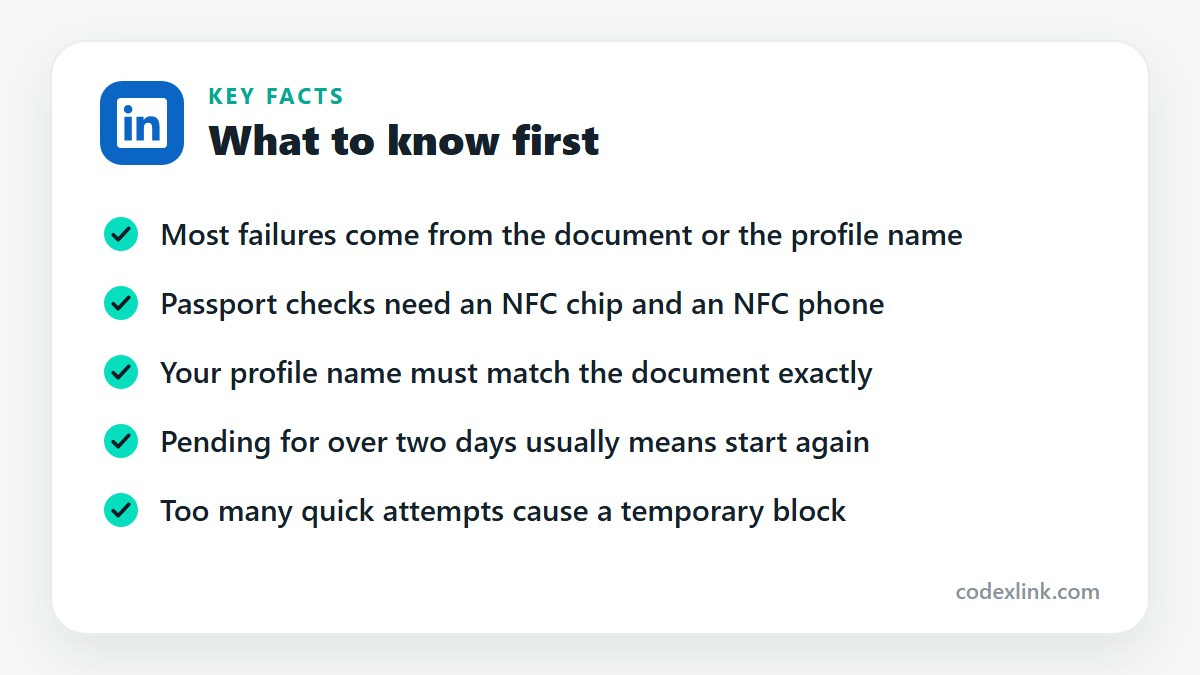
In order of likelihood, the causes are: a document type that is not accepted in your country, a passport without an NFC chip, a phone that cannot read NFC or has it switched off, a profile name that differs from the document, a poor quality scan or selfie, and an out-of-date app. Work through them one at a time. Changing several things at once makes it hard to know which one mattered, and repeated rapid attempts can lock you out for a while.
Why can't I verify my LinkedIn account?
If you cannot even begin, the feature is probably not available to you. Identity verification is switched on country by country, and workplace verification only appears when your employer's domain is supported. A new account, an account under restriction, or an old app version can also hide the option. Check on the mobile app, update it, and look under More, then About this profile. If nothing is offered, wait and try again in a few weeks.
LinkedIn identity verification failed
This message means the partner could not confirm that your document is genuine and belongs to you. Read any detail shown with it. Then check four things: the document is an accepted type and has not expired, the chip was fully read if it is a passport, your selfie was clear, and your LinkedIn name matches the document character for character. Correct whatever is wrong, wait a few minutes and run the check again from your profile.
LinkedIn verification failed
A plain failure message without detail usually comes from the final comparison step. The scan worked, but something did not line up. The most frequent culprit is the name. A profile that says Mike when the passport says Michael, or that leaves out a middle name printed in the given names field, will fail. Edit the profile name, save it and retry. If the name already matches, repeat the selfie in better light.
LinkedIn verification error
A technical error, as opposed to a rejection, normally points to the app or the connection. Close LinkedIn fully and reopen it. Update it from the app store. Switch between Wi-Fi and mobile data, and turn off any VPN, since the partner services can block them. If the error appears when the partner's page loads, clear the app cache or reinstall. These errors are temporary far more often than rejections are.
LinkedIn verification keeps failing
When every attempt fails the same way, the cause is something that does not change between tries, which almost always means the document or the name. Confirm that your passport really is electronic by finding the chip symbol on its cover. Confirm it has not expired. Compare the name fields line by line. If all of that is correct, the document may simply not be supported yet in your country, and workplace verification is the route to take.
LinkedIn verification stuck
A verification that freezes on one screen is usually waiting for something from your phone. During a passport read, the phone must stay in contact with the chip until the progress indicator completes, which can take ten seconds or more. During the selfie, the camera needs to see your whole face. If the screen is frozen with no prompt, force-close the app, reopen it and start again. Half-finished attempts do not count against you.
LinkedIn verification pending
Pending means your details were submitted and the partner has not yet returned a result. Most pending checks resolve within minutes. A small share are sent for manual review, which can take several hours. There is nothing to do except wait and avoid starting a second attempt at the same time, since that can cancel the first. Check the Verifications section of your profile later in the day to see whether it has completed.
LinkedIn verification taking too long
If a check has been pending for more than 24 to 48 hours, treat it as stalled. Sign out of LinkedIn and back in, then open About this profile. If the status is unchanged, begin a new verification. Should the second attempt also sit pending for more than two days, contact LinkedIn support through the Help Centre with the date of each attempt, so they can ask the partner to look at it.
Document problems
LinkedIn ID verification not working
Check first that the ID is on the accepted list shown at the start of the process. Where CLEAR is used, a driving licence or state ID must be current and undamaged, and you also need a phone number from that country. Where Persona is used, ordinary ID cards are often not accepted at all. If your ID is the right type, clean the camera lens, lay the card flat on a dark surface and avoid reflections from overhead lights.
LinkedIn passport verification not working
Passport verification has two parts and fails if either one fails. The camera reads the printed lines at the bottom of the photo page, then the phone reads the chip. For the chip, turn on NFC, remove the phone case and any passport cover, and rest the top back of the phone on the photo page or the back cover. Move it slowly until the phone vibrates, then keep it completely still until the read finishes.
LinkedIn national ID verification not working
In most countries where Persona runs the check, a national ID card is not an accepted document, so the attempt cannot succeed however carefully you scan it. LinkedIn's screen lists what is accepted for your account. If only a passport is listed, you need a chip passport. If you do not have one, verify your workplace by email instead, or wait, since LinkedIn adds support for more documents over time.
LinkedIn document verification failed
Document failures fall into three groups. The document is the wrong type for your country. The document is valid in type but expired, damaged or worn so that it cannot be read. Or the image was poor, with glare, blur or a corner cut off. Check them in that order. A document that has been laminated, heavily creased or water damaged often cannot be read by the chip reader even when it looks fine.
LinkedIn verification rejected my ID
A rejection is specific to that document. Ask whether it is listed as accepted, whether it is in date, and whether the photo on it is recent enough to resemble you. Then consider the scan. Take it in daylight, without flash, with all four corners visible. If the document is accepted and in good condition and is still rejected twice, try a different accepted document if you have one, or contact LinkedIn support.
LinkedIn verification says unable to verify identity
This wording means the partner could not link three things together: the document, the selfie and your profile. Usually one of them is slightly off. Retake the selfie facing a window, without glasses, hat or mask, and with a neutral expression. Make sure your profile name is identical to the document. If you look very different from the document photo, for example after many years, a newer document may be needed.
LinkedIn verification photo rejected
Selfies are rejected when the system cannot be sure they show a live person who matches the document. Common reasons are backlighting from a window behind you, a face partly out of frame, glasses that reflect light, a hat or scarf covering the hairline, and holding the phone too low. Hold it at eye level, face the light, keep still and follow the on-screen prompts about turning your head if they appear.
Mismatch errors
LinkedIn verification name mismatch
LinkedIn compares the name on your profile with the name in the document, and small differences count. Go to your profile, select the edit icon by your name and set the first name and last name fields exactly as the document shows them. Remove titles such as Dr or Engr, qualifications, emojis and nicknames. If you use a different professional name, you can add it afterwards in the additional name field. Save, then verify again.
LinkedIn verification date of birth mismatch
A date of birth mismatch arises when the date read from the document differs from one held elsewhere in the check, for example with the phone number record in a CLEAR verification. Confirm that you are using your own current document and that it was read correctly. If your identity documents themselves disagree with each other, that has to be corrected with the issuing authority, and LinkedIn cannot override it.
LinkedIn verification country mismatch
This happens when the country of your document, your phone number and your LinkedIn account do not agree with what the method expects. CLEAR, for instance, needs a phone number from the same country as the method. If you live abroad, choose the option that fits your document where LinkedIn offers a choice, and use the passport of your nationality. Changing your profile location purely to unlock a method does not help.
Missing options and display problems
LinkedIn verification unavailable in my country
LinkedIn has enabled identity verification in a long list of countries, but not everywhere, and it does not publish a timetable for the rest. If the option is missing, you cannot force it. The alternatives are workplace verification with a supported company email and education verification through a school. Keep the app updated, because new countries are switched on without announcement. See our country guide for the main markets.
LinkedIn verification option missing
If friends in your country can see the option and you cannot, the cause is on your side. Update the LinkedIn app, since older versions do not show it. Check in the app instead of a browser. Look under More on your own profile and choose About this profile. New accounts and accounts with recent restrictions may be excluded for a time. Signing out and back in sometimes makes the prompt appear.
LinkedIn verification badge not showing
After a successful check the badge occasionally takes a little while to display. Pull down to refresh your profile, then sign out and in again. Open About this profile and confirm the verification is listed there. If it is listed, the badge will follow. If it has disappeared after being present, you have probably edited your name or changed your current employer, and LinkedIn has removed the verification until you repeat the check.
LinkedIn verification link not working
Verification links are single use and expire quickly, often within minutes. A link opened from an old email or reopened after a failed attempt will show an error. Go back to your profile and start the process again to generate a fresh one. Open it on the same phone where the LinkedIn app is signed in to your account, and avoid opening it inside another app's built-in browser.
LinkedIn verification QR code not working
The QR code shown on a computer is also short lived. If your phone does not react to it, refresh the page to produce a new code, raise the screen brightness and scan with the phone's own camera app. Make sure the phone is signed in to the same LinkedIn account as the computer. If scanning still fails, skip the computer and start the verification directly in the mobile app.
LinkedIn verification app not working
When the app crashes or will not load the verification screens, update it first. Then clear its cache on Android, or delete and reinstall it on iPhone. Restart the phone. Check that the phone's operating system is reasonably current, because the partner's tools need recent versions. Free up storage if the phone is nearly full. As a last resort, try on a different phone while signed in to your own account.
LinkedIn verification camera problem
A black screen or an error when the camera should open means the app lacks permission or another app is holding the camera. Open your phone's settings, find LinkedIn and allow camera access. If the partner's step opens in a browser, allow the camera there too. Close video call and camera apps running in the background. Clean the lens, and if the image is dark, move to a brighter spot instead of using the flash.
Workplace and work email problems
LinkedIn verification work email not received
The code email is automated, so company mail filters often catch it. Check spam, junk and quarantine, and any folder where bulk mail is sorted. Confirm you typed the address without a mistake. Wait a few minutes, then request another code. If repeated codes never arrive, ask your IT team to allow mail from LinkedIn's domains. Some organisations block all external automated mail, in which case this method cannot work for you.
LinkedIn workplace verification failed
Workplace verification fails when the email domain does not match the company on your profile, when the position is not linked to the official Company Page, or when the code was entered after it expired. Edit your current position and reselect the company from LinkedIn's suggestions so the logo appears. Then request a new code and enter it immediately. If your company has several domains, try the one used on its main website.
LinkedIn work email verification not working
If LinkedIn refuses your work address outright, the domain is not on its supported list, and no amount of retrying will change that. This is common for small businesses and for companies that use a general email provider. An address at Gmail, Outlook.com or Yahoo will never be accepted. In that situation, use identity verification with an accepted document, which does not depend on your employer at all.
Getting support
LinkedIn verification support contact
Open the LinkedIn Help Centre from the menu under your profile picture, search for verification and choose the option to contact support or create a case. State which method you used, the exact error text, the date of each attempt and your country, and attach a screenshot. For failures inside the document step, the partner's own help pages, CLEAR's or Persona's, are worth reading. Never post your ID in a public comment or message when asking for help.
What are the quickest solutions to LinkedIn verification issues?
Five checks solve most cases. Update the LinkedIn app. Match your profile name to your document exactly. Use a chip passport if your country requires one, with NFC on and the case off. Scan and take the selfie in even daylight. Wait between attempts instead of retrying immediately. If the identity route stays closed, verify your workplace with a company email, which earns the same badge.
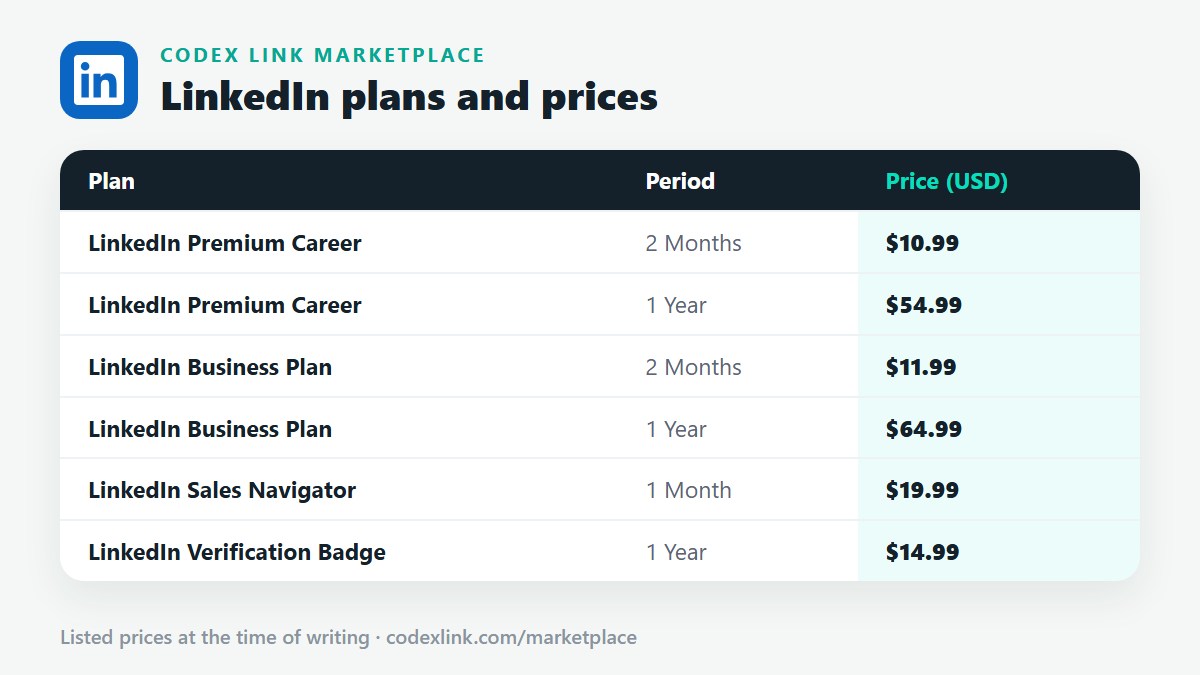
LinkedIn plans and prices on CodeX Link
These are the LinkedIn plans listed on the CodeX Link marketplace at the time of writing. Message the team on WhatsApp to confirm the price and how activation works before you order.
| Plan | Period | CodeX Link price |
|---|---|---|
| LinkedIn Premium Career | 2 Months | $10.99 |
| LinkedIn Premium Career | 1 Year | $54.99 |
| LinkedIn Business Plan | 2 Months | $11.99 |
| LinkedIn Business Plan | 1 Year | $64.99 |
| LinkedIn Sales Navigator | 1 Month | $19.99 |
| LinkedIn Verification Badge | 1 Year | $14.99 |
Need a LinkedIn plan?
Chat with the CodeX Link team for the current price and activation details, or browse every tool in the marketplace.
LinkedIn is a trademark of its owner. Features, limits and prices change over time and differ by country, so confirm the current terms on LinkedIn before you buy.