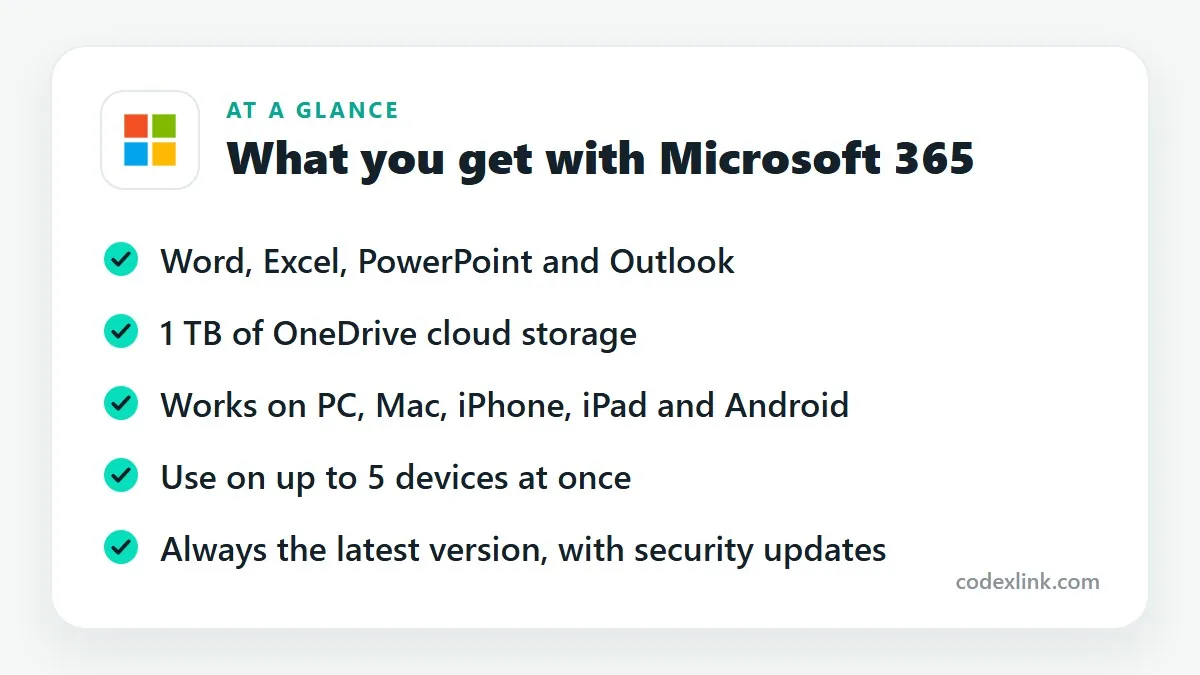
Microsoft 365 is Microsoft's subscription for the Office apps. It includes Word, Excel, PowerPoint and Outlook on PC, Mac and mobile, plus 1 TB of OneDrive storage per person and continuous updates.
Key takeaways
- Microsoft 365 is a subscription to the Office apps plus cloud storage, security features and continuous updates.
- Personal and family plans include 1 TB of OneDrive storage per person and work across PC, Mac, phone and tablet.
- Always confirm which plan you are buying and whether it's activated on your own Microsoft account.
Almost everyone has used Word or Excel. Fewer people are sure what they are paying for when they buy Microsoft 365, or how it differs from the Office they bought once ten years ago.
The short version: Microsoft 365 is Office as a subscription, with cloud storage and regular updates included. The details are worth knowing before you buy.
What Microsoft 365 is
Microsoft 365 is the current name for what used to be called Office 365. Instead of buying one version of Office and keeping it for years, you subscribe and always have the latest apps, along with services that only make sense online: storage, syncing and real-time collaboration.
What you get
The Office apps. Word, Excel, PowerPoint and Outlook, as full desktop programs on Windows and Mac and as apps on phones and tablets. OneNote is included, and Windows users also get Access and Publisher on some plans.
1 TB of OneDrive storage. That is enough for years of documents and a very large photo library. Files sync between your devices and can be recovered if a laptop is lost or damaged.
Multiple devices. You can install the apps on all your devices and be signed in on up to five at the same time.
Security. OneDrive includes ransomware detection and file recovery, and Microsoft Defender is included with consumer plans for device and identity protection.
Continuous updates. New features arrive as Microsoft releases them, including its Copilot AI features, which depend on your plan and region.
The main plans
Microsoft sells the suite in several forms, and the names are easy to confuse.
- Personal is for one person, with 1 TB of storage.
- Family covers up to six people, each with their own 1 TB.
- Business plans add work email on your own domain, Teams, and admin controls.
- Office Home, sold as a one-time purchase, gives you the core apps on one computer with no cloud storage and no feature updates.
The right choice depends on who is using it. A freelancer is usually fine with Personal. A household should take Family. A company with staff and a domain needs a Business plan.
Subscription or one-time purchase?
The one-time version looks cheaper, and for someone who only writes the occasional letter on one computer it can be. You give up cloud storage, the mobile apps' full features, and upgrades to future versions.
The subscription costs more over time but includes a terabyte of storage that would be a separate expense elsewhere. If you use more than one device or collaborate on documents, the subscription is the practical choice.
Before you buy
Ask two questions of any seller, including us.
First, which plan is it? "Microsoft 365" on its own doesn't tell you whether you are getting Personal, Family or a Business licence.
Second, how is it activated? A subscription tied to your own Microsoft account is yours to manage, with your own OneDrive. Make sure you understand what you'll receive and how long it lasts.
Getting the most from your subscription
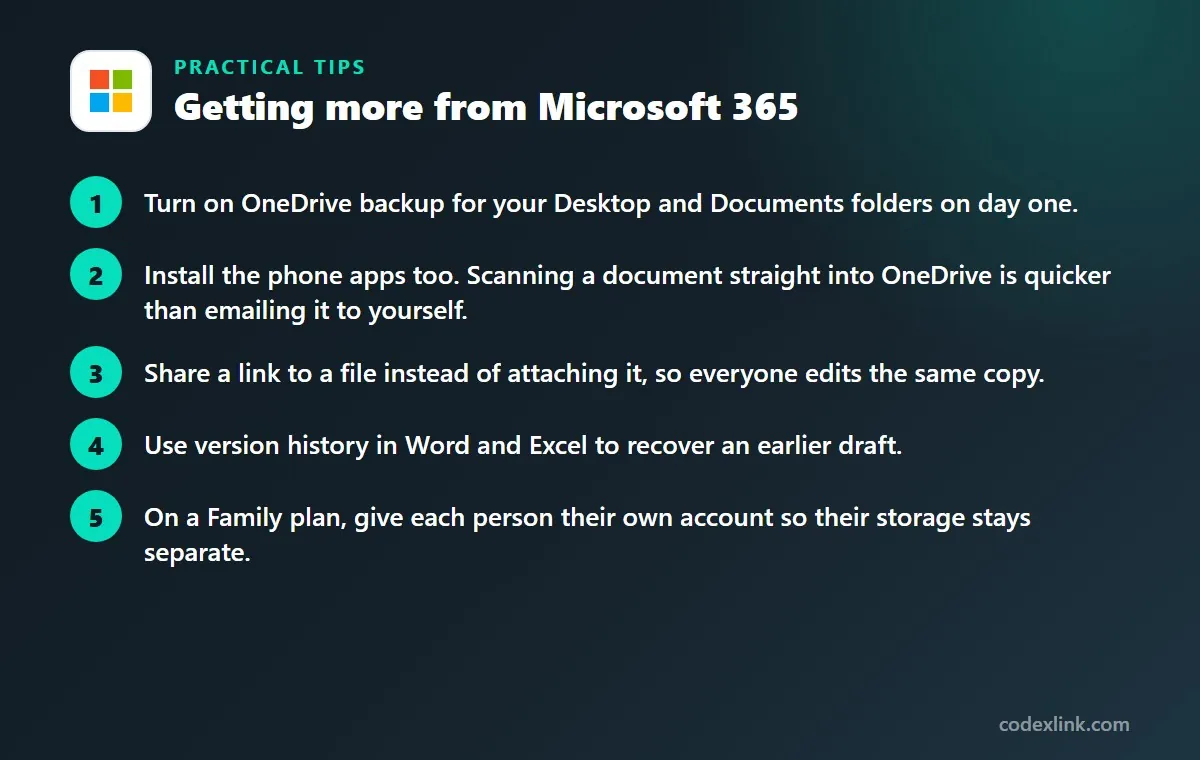
- Turn on OneDrive backup for your Desktop and Documents folders on day one.
- Install the phone apps too. Scanning a document straight into OneDrive is quicker than emailing it to yourself.
- Share a link to a file instead of attaching it, so everyone edits the same copy.
- Use version history in Word and Excel to recover an earlier draft.
- On a Family plan, give each person their own account so their storage stays separate.
Microsoft 365 availability and pricing around the world
Microsoft 365 is sold in most countries, with pricing and tax set for each region. Plan names are largely the same worldwide, though the exact features bundled in, particularly the AI ones, can differ by market.
The apps themselves are available in dozens of languages, and you can change the display and proofing language after installing. Where your data is stored depends on the region your account was created in.
One-time Office vs Microsoft 365: quick comparison
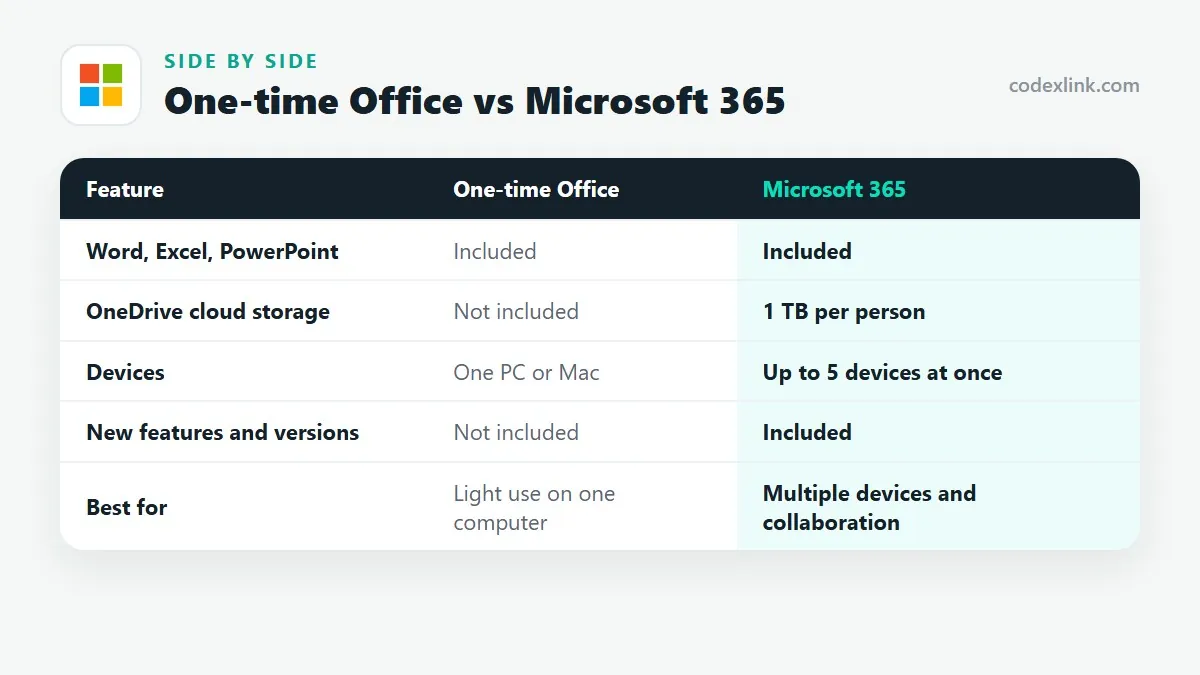
| Feature | One-time Office | Microsoft 365 |
|---|---|---|
| Word, Excel, PowerPoint | Included | Included |
| OneDrive cloud storage | Not included | 1 TB per person |
| Devices | One PC or Mac | Up to 5 devices at once |
| New features and versions | Not included | Included |
| Best for | Light use on one computer | Multiple devices and collaboration |
Microsoft 365 pros and cons
Pros
- Always the current version of every app
- A terabyte of cloud storage is included
- Works across Windows, Mac, phones and tablets
Cons
- Ongoing cost instead of a single payment
- Apps become limited if the subscription lapses
- Plan names are easy to confuse
Setting up Microsoft 365 the right way
Microsoft 365 is far more than Word and Excel. A careful setup on day one makes it safer and more useful.
- Install the desktop apps on your main computer and the mobile apps on your phone, and sign in with the same account.
- Turn on OneDrive backup for Desktop, Documents and Pictures, so files are protected if the laptop is lost or damaged.
- Enable two-step verification with the Microsoft Authenticator app. Office accounts are a common target for phishing.
- Set up Outlook with your email and calendar, and create rules and folders for clients, invoices and newsletters.
- Use Version History in Word, Excel and PowerPoint files stored in OneDrive to restore earlier versions after mistakes.
Microsoft 365 for businesses
Home plans (Personal and Family) and business plans (such as Business Basic, Standard and Premium) are licensed differently. Business plans add custom-domain email through Exchange, Microsoft Teams with business features, admin controls and, on higher tiers, device and security management. If you run a company, need staff accounts or want email at your own domain, choose a business plan.
- Email at your domain: name@yourcompany.com builds more trust than a free email address.
- Teams: chat, video meetings and shared files in channels for each project or department.
- SharePoint: a company-wide file store with permissions, replacing scattered shared folders.
- Admin centre: add and remove staff, reset passwords and recover files when someone leaves.
CodeX Link also sets up business email and domains; see our hosting guide for how email fits with your website.
Alternatives to Microsoft 365
- Google Workspace: browser-first, excellent real-time collaboration in Docs and Sheets, Gmail for business email.
- Notion: notes, wikis and project management rather than full office documents. See our Notion Plus guide.
- Free Office apps: Microsoft's free web versions of Word, Excel and PowerPoint cover light use, with fewer features and less storage.
- LibreOffice: free desktop office suite, with weaker compatibility for complex Excel and PowerPoint files.
For a full side-by-side comparison, read Microsoft 365 vs Google Workspace vs Notion.
Mistakes to avoid
- Keeping files only on one laptop: use OneDrive so a hardware failure does not cost you your work.
- Ignoring sign-in alerts: review unusual sign-in emails from Microsoft and change your password if you do not recognise the activity.
- Buying a home plan for a company: home plans are licensed for personal, non-commercial use; businesses should use business plans.
- Sharing links with "Anyone": for confidential files, share with specific people instead of public links.
- Letting storage fill up: when OneDrive is full, files stop syncing; check storage in your account settings.
How to choose the right Microsoft 365 plan
Microsoft offers several plans, and the right one depends on who will use it and how.
- One person, personal use: a Personal plan covers the desktop apps and OneDrive storage for one user.
- A household: a Family plan lets several people share the subscription, each with their own storage.
- A small business without custom email: a business apps plan provides the desktop apps with business licensing.
- A business that needs email at its domain and Teams: a business plan with Exchange email and Teams.
- Companies with security requirements: higher business tiers add device management and advanced security.
Plan names, features and prices change, so confirm the details on Microsoft's site or ask our team before you buy.
Getting Microsoft 365 through CodeX Link
Microsoft 365 is available from the CodeX Link marketplace. Message the team on WhatsApp to confirm the exact plan, the price and the activation method before ordering.
How to order
- Choose Microsoft 365 Professional on the marketplace.
- Message the team on WhatsApp to confirm the price, plan and activation steps.
- Complete activation and start using it.
Frequently asked questions
What is the difference between Microsoft 365 and Office 365?
They are the same service. Microsoft renamed Office 365 to Microsoft 365, and the consumer plans are now called Microsoft 365 Personal and Family.
How many devices can I use Microsoft 365 on?
You can install the apps on all your devices and stay signed in on up to five at once, across PC, Mac, phone and tablet.
How much storage does Microsoft 365 include?
Personal and Family plans include 1 TB of OneDrive storage per person. Business plans also include 1 TB per user.
Can I use Microsoft 365 on a Mac?
Yes. Word, Excel, PowerPoint, Outlook and OneNote all have full Mac versions. Access and Publisher are Windows only.
What happens to my files if my subscription ends?
Your files stay in OneDrive, but the apps switch to a limited mode and you can't add files beyond the free storage allowance. Renewing restores full access.
Does Microsoft 365 work in every country?
It is available in most countries and in many languages. Prices and some included features vary by region, so confirm what the plan includes where you live.
How much does Microsoft 365 cost?
The official price is set by the provider and varies by country, plan and billing period. CodeX Link has special offers on Microsoft 365 Professional; ask the team on WhatsApp for today's price.
How do I buy Microsoft 365 from CodeX Link?
Choose Microsoft 365 Professional on the CodeX Link marketplace, then message the team on WhatsApp to confirm the price and plan. They guide you through payment and activation.
Interested in Microsoft 365?
Chat with the CodeX Link team for the current price and activation details, or browse every tool in the marketplace.
Product names and logos belong to their respective owners. Features and plan details change over time, so confirm the current terms with the provider before you buy.